%20(2).avif)
%20transparent.avif)

Z-Image Turbo ControlNet in ComfyUI: Canny Settings Explained
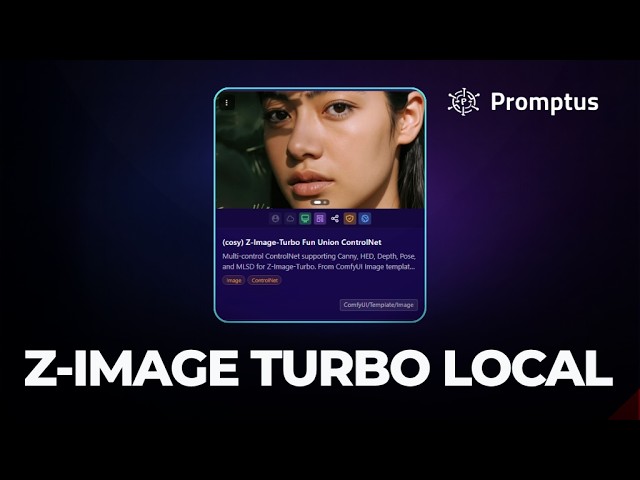
Short answer: Install the Z-Image Turbo ControlNet template from CosyTemplates, give it a clear reference image, and tune two things: the Canny thresholds, which decide which edges are kept, and the ControlNet strength, which decides how hard those edges steer the picture. Clean, high-contrast references work best; small, soft photos lose detail.
Cloud or local
| Route | How |
|---|---|
| Cloud (Playground) | Pick Z-Image Turbo in the model drop-down, type a prompt and Generate — no install |
| Local | CosyTemplates › search Z-Image › three-dot menu › Install Locally, then refresh |
In the cloud run, the video made a female warrior, the word Promptus as text, and a watercolour rabbit. Locally, once installed, every setting is pre-filled: add an image, type a prompt and Generate. A stylised red-haired illustration came back realistic because the prompt asked for it.
Canny thresholds, shown on real outputs
Open Run in Playground › Advanced settings to reach schedulers, seeds, steps and the Canny controls. The video’s experiments:
| Reference | Settings | Result |
|---|---|---|
| Soft, low-resolution photo of a woman in a meadow | Low 0.3, high 0.0 | Only the tree and clouds survived; the face was lost |
| Architecture with text | Same thresholds | Structure, frame and green background kept cleanly |
| Same reference | High 0.6, low about 1.2 | Mostly outlines, with some background detail |
| Same reference | ControlNet strength lowered to about 0.6 | A full outline-style transformation |
The lesson: the reference matters as much as the numbers. Sharp edges and good resolution give the preprocessor something to hold on to.
Inside the raw ComfyUI workflow
- From the template’s three-dot menu choose Load in ComfyUI.
- A red nodes missing message means Load Image is empty — choose a file (the example was 607×768).
- In the image preprocessor node, set the Canny thresholds (the video lowered them to 0.08 and 0.9).
- Zoom out: step 1 loads the model, step 2 holds the prompts, then the KSampler and VAE Decode.
- Replace the prompt and Run; the green outline shows which node is working.
A Chihuahua photo plus realistic photograph of the dog with a toy in the mouth running in the park with a Christmas tree and Santa hat became a festive render: the dog’s shape came from the Canny edges, everything else from the prompt. During the run the laptop showed VRAM at 85%, RAM at 63% and the GPU at 100%.
New to Z-Image? Start with Z-Image Turbo for beginners or the ComfyUI tutorial for beginners. Download Promptus.