%20(2).avif)
%20transparent.avif)

ComfyUI Tutorial for Beginners: Images, LoRAs and Video
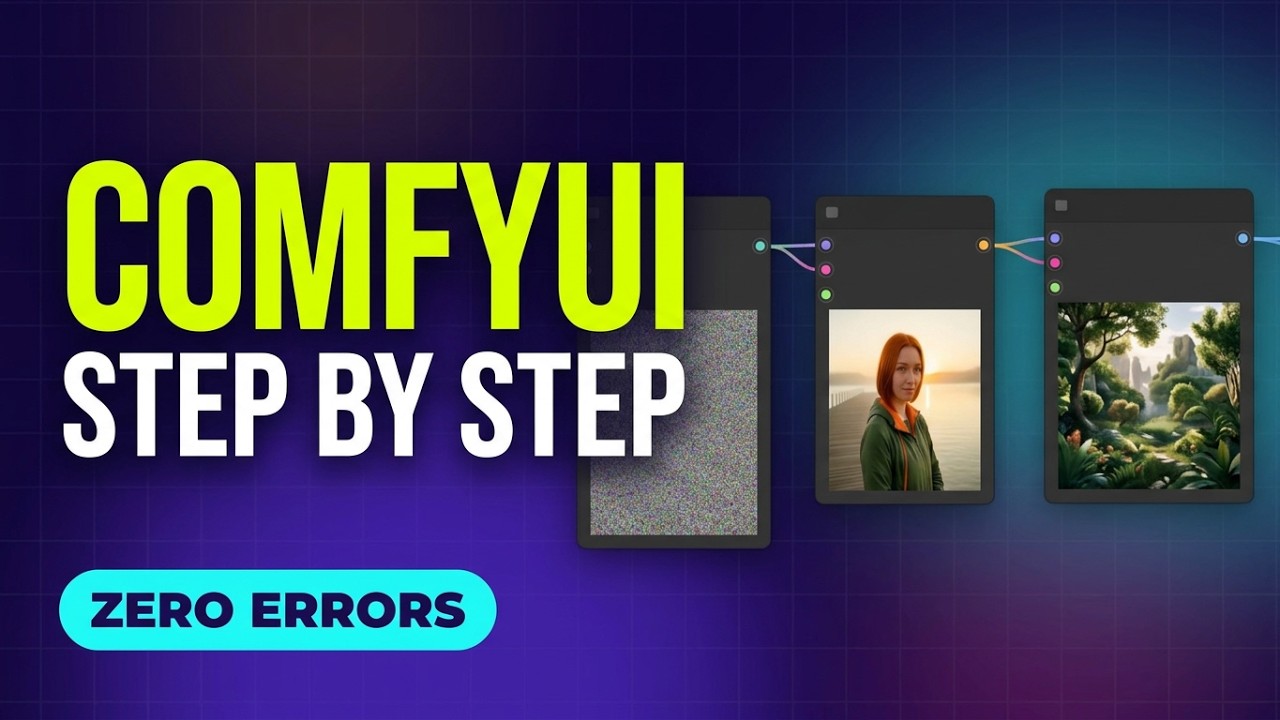
Short answer: ComfyUI is a free, open-source app that runs AI models on your own computer and shows every step as a node. Install a ready-made workflow, learn what its eight nodes do, and every other job — changing a picture, adding a character, upscaling, making video — becomes adding or swapping one node. This guide follows the video step by step, with real times from one laptop.
1. Install a workflow without missing-model errors
A workflow needs model files in exactly the right folders. Open a template that expects files you don’t have and you get missing models — for FLUX.2 dev that was four files and a 69 GB download.
In Promptus, open CosyTemplates, search for Z-Image-Turbo and click Install Locally. Promptus fetches the files and puts them where they belong. The install took about 3 minutes 40 seconds; then Load in ComfyUI and Run. The first picture took about 20 seconds, because the model loads the first time.
2. What every node does
| Node | What it does |
|---|---|
| Load Diffusion Model | Loads the model itself — the part that makes the picture |
| Load CLIP | Loads the text encoder, which turns your words into numbers the model understands |
| Load VAE | The translator between normal pictures and the model’s compressed format, the latent |
| CLIP Text Encode | Your prompt |
| Empty SD3 Latent Image | The blank starting latent; it sets the size |
| KSampler | Starts from random noise and cleans it up step by step, guided by your prompt |
| VAE Decode | Turns the finished latent back into a normal picture |
| Save Image | Saves it |
Four KSampler settings matter most:
- Steps — how many cleaning passes. Z-Image-Turbo needs eight.
- CFG — how strictly it follows your prompt. This turbo model wants 1.
- Seed — the random starting point. Same seed, same picture.
- Denoise — how much of the starting point gets redrawn. At 1, everything is new.
Links only join an output to an input of the same type — model, CLIP, conditioning, latent, VAE or image. Go by the type names, not the colours, because colours are a setting. Set control after generate to fixed when you find a seed you like. Everything you make is saved under Comfy Output in Promptus.
3. Image to image
Add a Load Image node and a VAE Encode node, and link the result into the KSampler’s latent input in place of the empty latent. Now denoise decides how much of your picture is redrawn. A cabin, re-prompted as a snowy winter night with northern lights:
| Denoise | Result | Time |
|---|---|---|
| 0.3 | Nothing visible changed | Under 10 s |
| 0.6 | A hint of the northern lights | Under 10 s |
| 0.85 | A snowy night, same cabin in the same place | Under 10 s |
4. Add a character with a LoRA
A LoRA (low-rank adaptation) is a small add-on file that teaches a model one new thing — a character, a product or a style — without retraining the whole model. One rule: a LoRA must match the base model it was trained for. Juno’s was trained on FLUX.2 [klein] 4B, so that’s the workflow used.
- Add a Load LoRA node right after Load Diffusion Model.
- Pick the LoRA file and set the strength.
- Start the prompt with the trigger word the LoRA was trained on.
At 1.0 the LoRA produced a pattern instead of a person. At 0.35 it worked, in 36 seconds. How to train your own: train a LoRA for a consistent character.
5. Upscaling
Plain resizing takes under a second but adds no detail. The better way reuses image to image: add Upscale Image By set to 2 before VAE Encode, and turn denoise down to 0.35 so the model redraws a little at the bigger size. Going from 1344×768 to 2688×1536 took about 3 minutes — sharper, but it also added curtains to a window, so small details can change.
6. Image to video with Wan 2.2
Load the Wan 2.2 14B Image to Video template from CosyTemplates and pick your picture in Load Image. Width and height set the size; length is the number of frames — 81 frames at 16 fps is about 5 seconds. Describe the movement, not the scene. The clip took just over 2 minutes, with the card peaking at about 22 GB of video memory. More models compared: five local image-to-video models tested.
The real times, on one laptop
RTX 5090 Laptop GPU with 24 GB of video memory, one run each:
| Job | Time |
|---|---|
| Install Z-Image-Turbo from CosyTemplates | About 3 min 40 s |
| First Z-Image-Turbo picture | About 20 s |
| Image to image | Under 10 s |
| LoRA picture (FLUX.2 Klein 4B) | 36 s |
| Upscale 1344×768 → 2688×1536 | About 3 min |
| Wan 2.2 14B image to video, 81 frames at 16 fps | Just over 2 min (peak about 22 GB) |
Six mistakes beginners make
| Error | Fix |
|---|---|
| A node outlined in red: required input missing | A link isn’t connected; the message names it (here, the KSampler had no positive prompt) |
| Missing models | Install from CosyTemplates so Promptus fetches the files |
| Media input missing | Load Image has no picture; pick one |
| VAE Decode: tuple index out of range | Wrong VAE. Use the one for your model — for Z-Image-Turbo, the one called AE |
| Strange output at CFG 8 | Z-Image-Turbo wants CFG 1 |
| LoRA gives texture, not a face | Strength too high; 0.35 worked here, so start low |
Models and licences
- ComfyUI (GPL-3.0)
- Z-Image-Turbo by Tongyi-MAI, Alibaba (Apache-2.0)
- FLUX.2 [klein] 4B by Black Forest Labs (Apache-2.0)
- Wan 2.2 by Alibaba (Apache-2.0)
Check each model’s licence yourself before you sell anything you make with it. Download Promptus to follow along with ComfyUI built in.