%20(2).avif)
%20transparent.avif)

MOSS Image AI Edit on ComfyUI Workflow
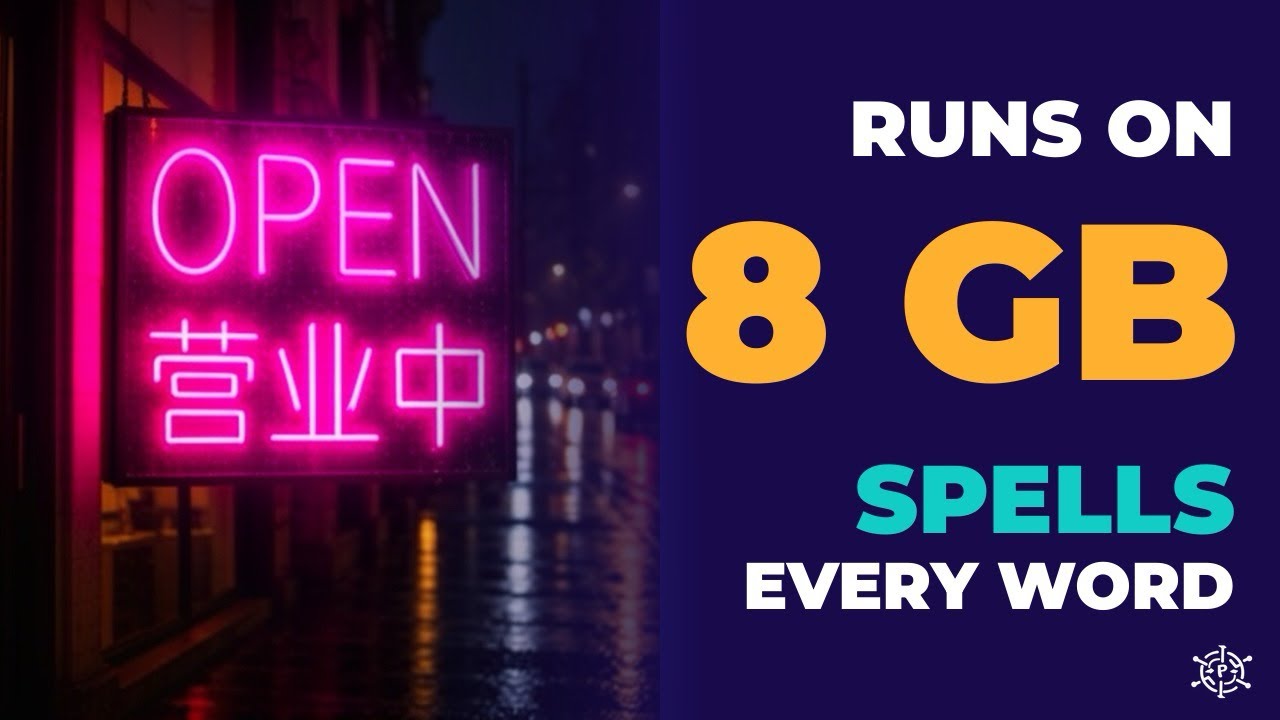
Short answer: Yes, MOSS-Image runs on a computer with 8 GB of memory. It uses a 4-bit copy of the image model and a 3-bit copy of the text encoder, run through stable-diffusion.cpp. In Promptus, the ready-made MOSS-Image 8GB Fast CosyTemplate does the setup for you. On an 8 GB MacBook (Apple A18 Pro), the fast 4-step version made a 512×512 picture in 2 minutes 16 seconds, with the sign spelled correctly. The full model took 10 minutes 44 seconds.
Watch: MOSS-Image on 8 GB — the full walkthrough on YouTube · Get it: open the MOSS-Image 8GB Fast CosyTemplate, or in Promptus go to CosyTemplates › search “MOSS” › Install Locally · Download Promptus
What is MOSS-Image?
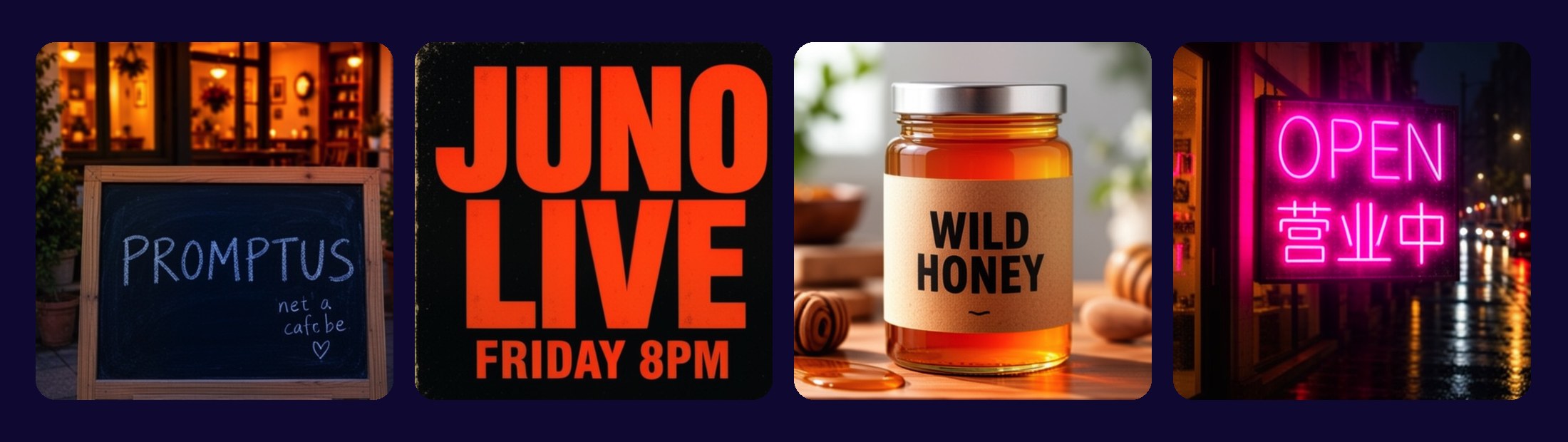
MOSS-Image is an open-source text-to-image model from the OpenMOSS team, released on 16 October 2026 alongside its technical report. It was built for the thing most image models get wrong: text inside the picture. Signs, posters, menus and labels come out spelled correctly, in English and Chinese.
Why is MOSS-Image so popular?
- On 26 October 2026 it was the #1 trending text-to-image model on Hugging Face, and it was still second on 27 October.
- The ComfyUI version on Hugging Face showed 2,760,550 downloads on 27 October, eleven days after it appeared. Hugging Face counts file downloads, not people.
- On LongLongTextBench, a long-text test made by the MOSS team, it scored 96.3% average text coverage, the best of the open models they tested. Coverage measures how much of the requested text appears, not whether every letter is right.
Why the normal workflow needs about 13 GB, and how the 8GB version fits
The official ComfyUI files are a 5.4 GB image model and a 7.3 GB text encoder (the part that reads your prompt). That’s about 13 GB, more than an 8 GB computer has once the system is running. The 8GB version swaps in smaller copies of the same model:
Three things keep memory down:
- The files are memory-mapped, so only the part in use sits in memory.
- The text encoder runs on the processor, which leaves the graphics memory for the image model.
- The picture is decoded in tiles.
Nothing has to be compiled. The first time you press Run, the node downloads the ready-made engine for your computer (about 30 MB) and the model files (about 7.9 GB).
How to run MOSS-Image in Promptus on 8GB
CosyTemplates:
- MOSS-Image 8GB Fast Text to Image — 4 steps, about 2 minutes per 512×512 picture on 8 GB. Start here.
- MOSS-Image 8GB Text to Image — the full model, 16 steps, about 11 minutes per 512×512 picture on 8 GB.
Install it and make a picture (no GitHub, no Terminal)
- In Promptus, open CosyTemplates and search for MOSS.
- On the MOSS-Image 8GB Fast Text to Image card, open the menu and choose Install Locally. Promptus copies the workflow to your computer and fetches its listed models.
- When it shows under Available Locally, open the menu again and choose Load in ComfyUI.
- Type your prompt. Put the exact words you want written in “quotation marks”.
- Press Run. The first run downloads the engine and the rest of the model files (about 8 GB in total), so it takes longer. After that, it’s about 2 minutes a picture on 8 GB.
- If ComfyUI says the MOSS-Image node is missing, click Install in that message, then restart ComfyUI.
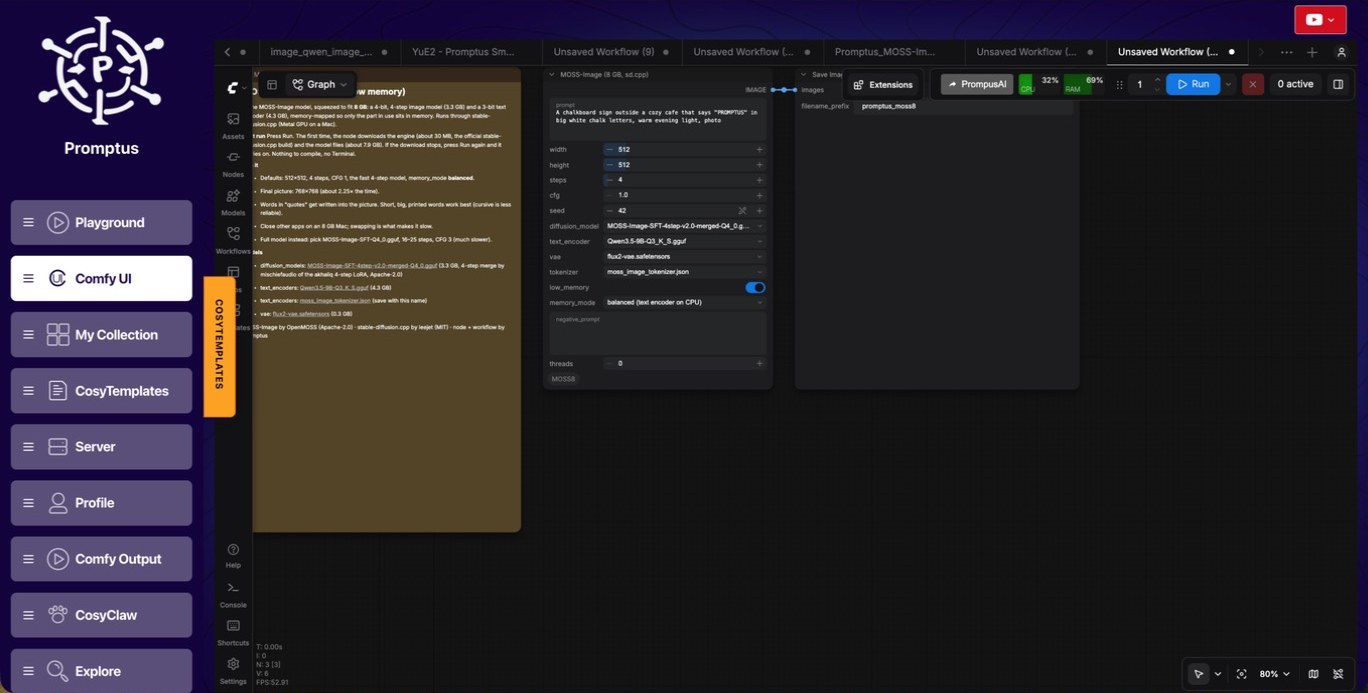
Using ComfyUI without Promptus? Install the node with ComfyUI Manager › Install via Git URL (github.com/claudianeodev/ComfyUI-MOSS-Image-8GB), restart, and drag in the Fast workflow JSON.
How to save your own ComfyUI workflow as a CosyTemplate (and run it in Playground)
A common question is how to get a ComfyUI workflow into Playground. You save it as a CosyTemplate first. These are the steps we used to publish MOSS-Image 8GB:
- Open your workflow in ComfyUI inside Promptus, and run it once to make sure it works.
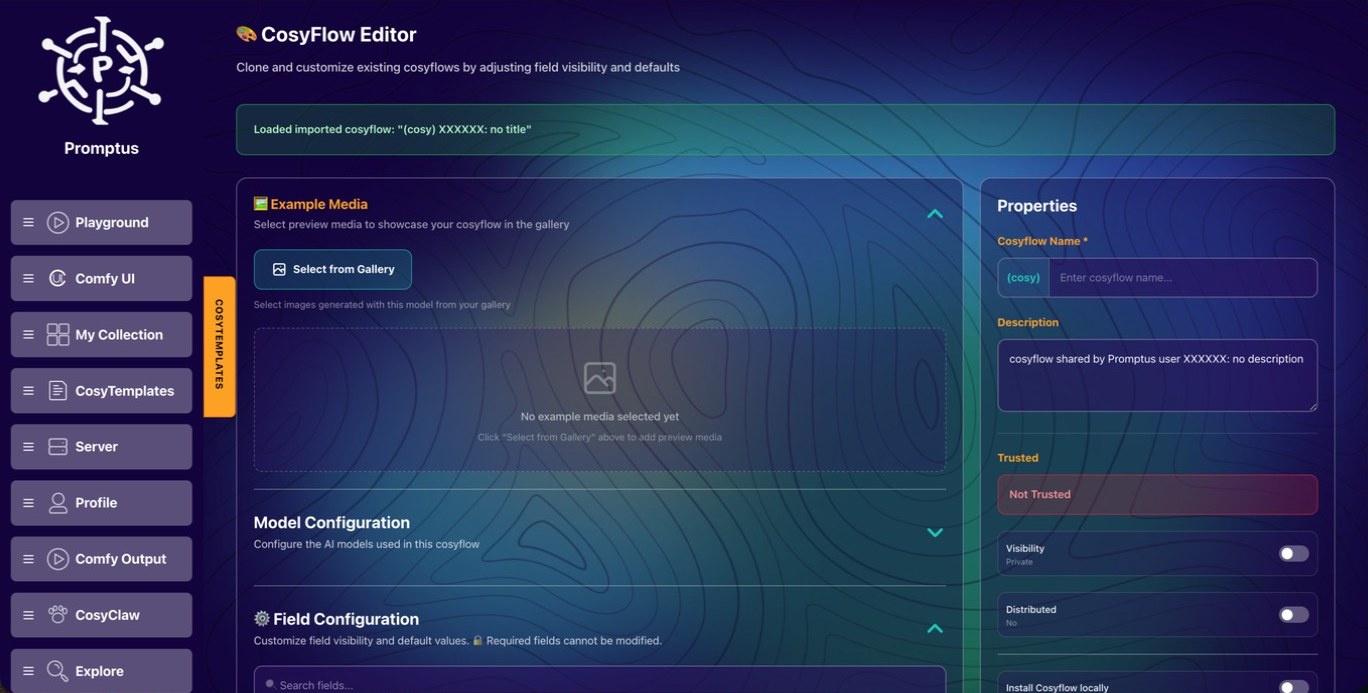
- Click PromptusAI in the ComfyUI toolbar, then Share. The CosyFlow Editor opens.
- Give it a name and a description (under 255 characters). Avoid a colon in the name, because Promptus puts your username before the first colon.
- Under Field Configuration, choose what people see. Each setting has a slider from 1 (Hidden) to 5 (Always). The main prompt is required and always shown.
- Under Model Configuration, add a download link and folder for each model, so Promptus can fetch them for other people.
- Under Example Media, choose a picture from your collection to show on the card.
- Leave Visibility on Private to keep it to yourself, or switch it to Public to share it.
- Switch on Distributed so other people get Install Locally for it. (Install Locally appears for templates that are both Distributed and Trusted.)
- Click Save as New Cosyflow.
- Open CosyTemplates and choose My CosyTemplates. New templates may not be marked trusted yet, so clear the Trusted filter under Properties if you don’t see yours.
- Every template has a Share this template link on its page. Copy it to send to other people.
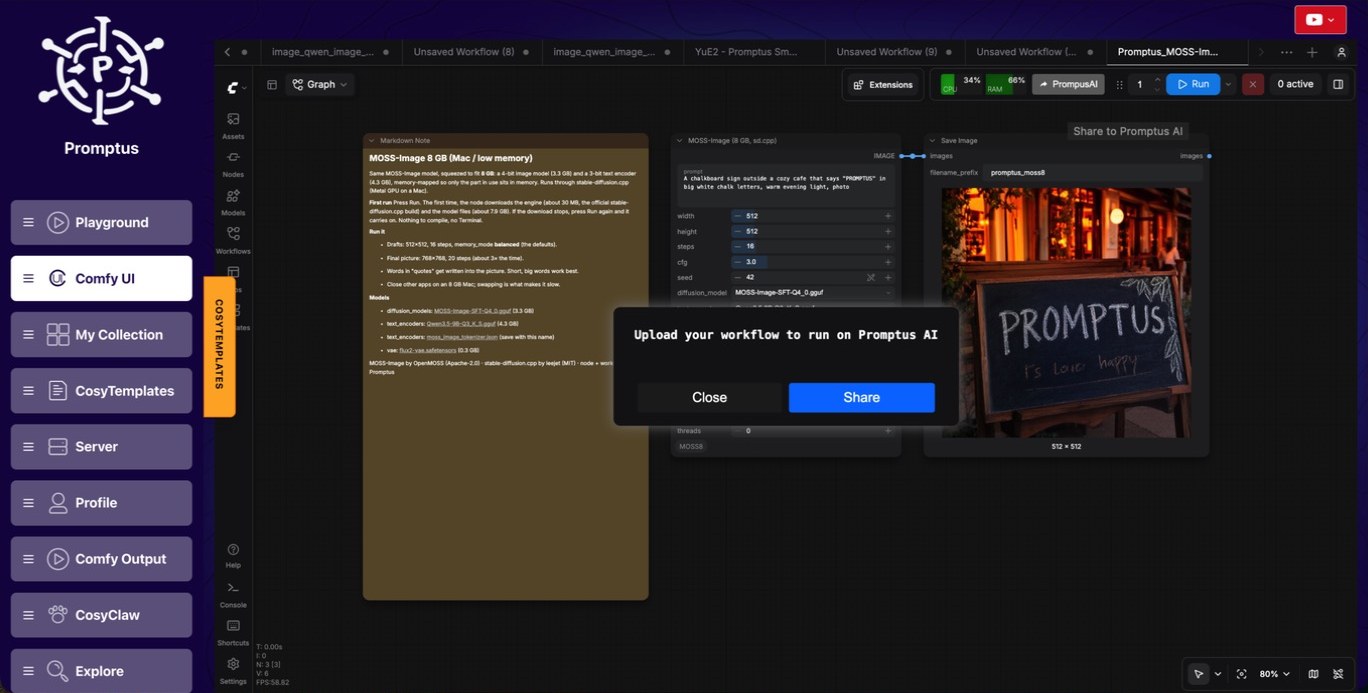
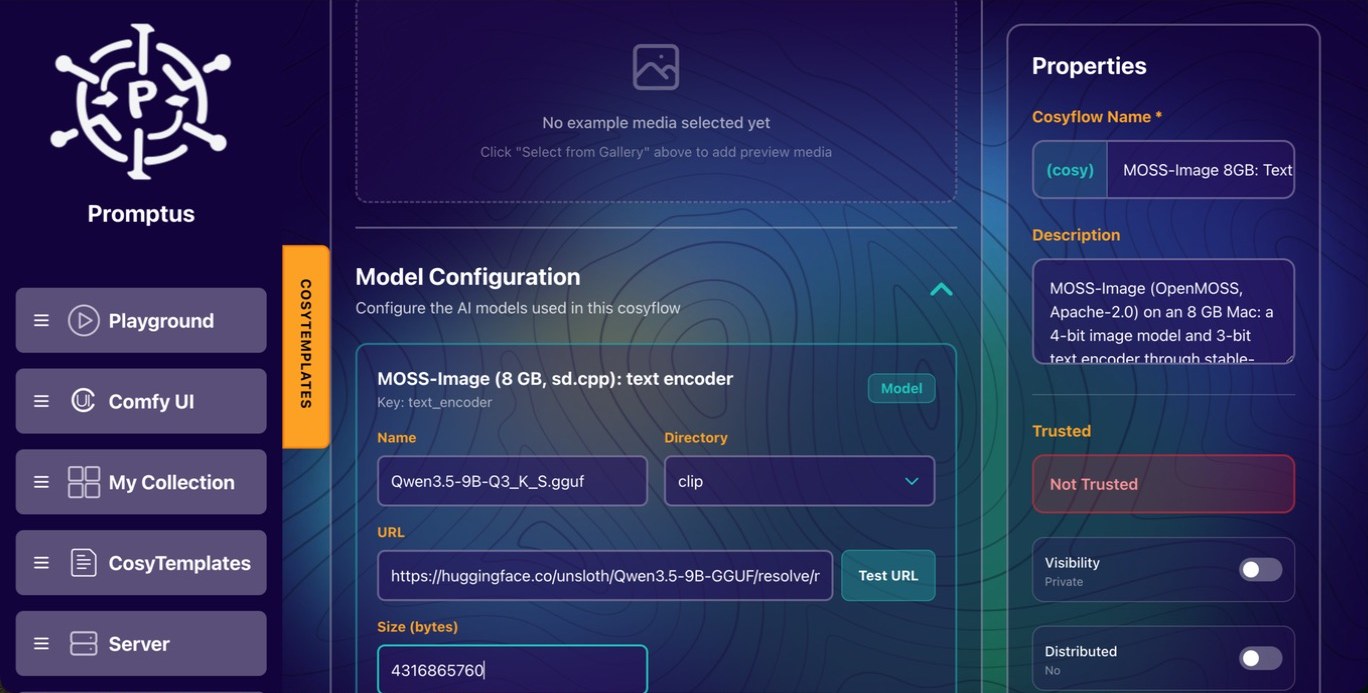
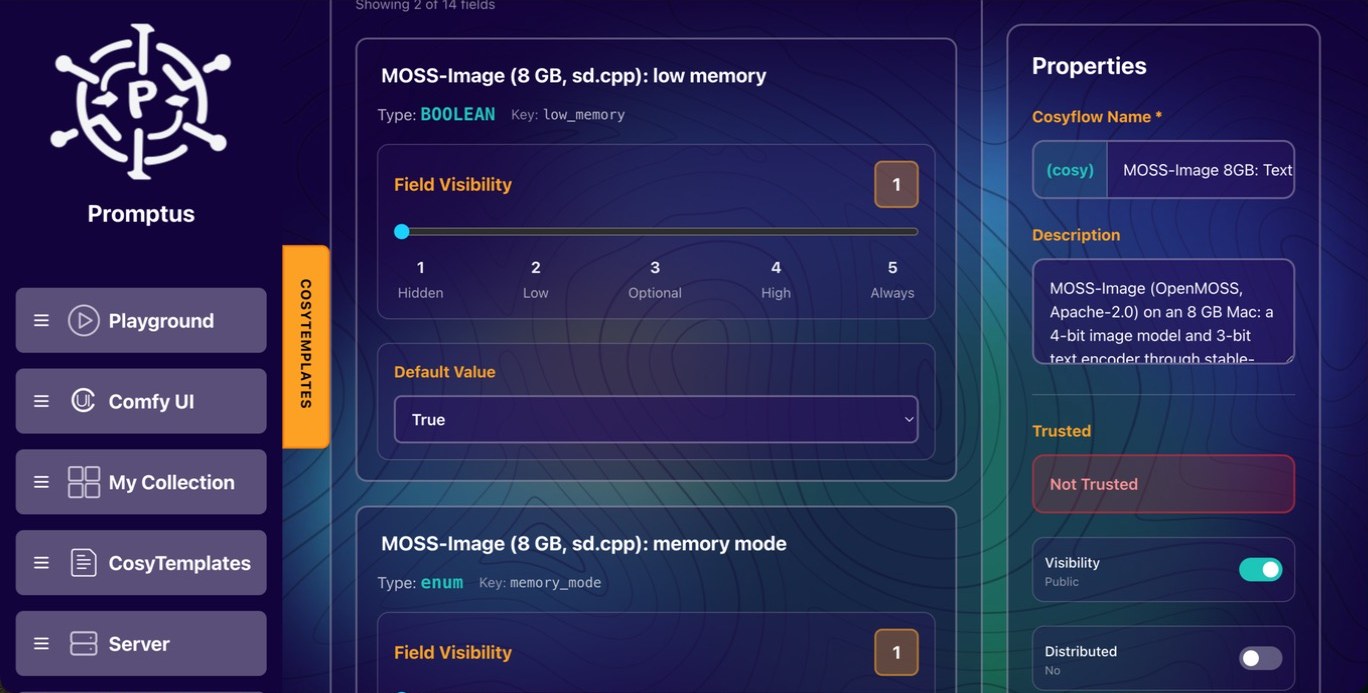
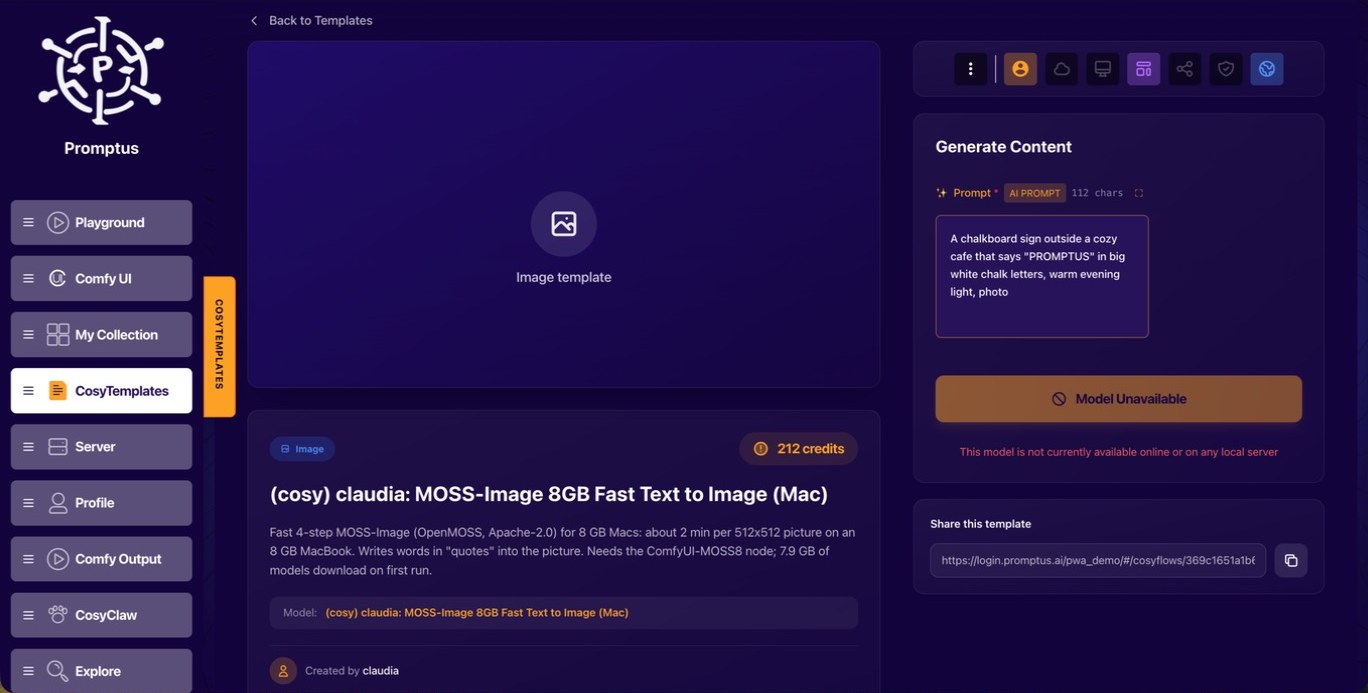
For workflows that use standard ComfyUI nodes, the template can then run in Playground. MOSS-Image 8GB uses its own node, so for now run it with Load in ComfyUI.
Tips for getting text right
- Put the exact words in “quotation marks” in your prompt.
- Keep the text short and big. Printed letters work better than cursive.
- Draft at 512×512, then make your favourite at 768×768 (about 2.25× the time).
- On an 8 GB computer, close other apps. Running out of memory is what slows it down most.
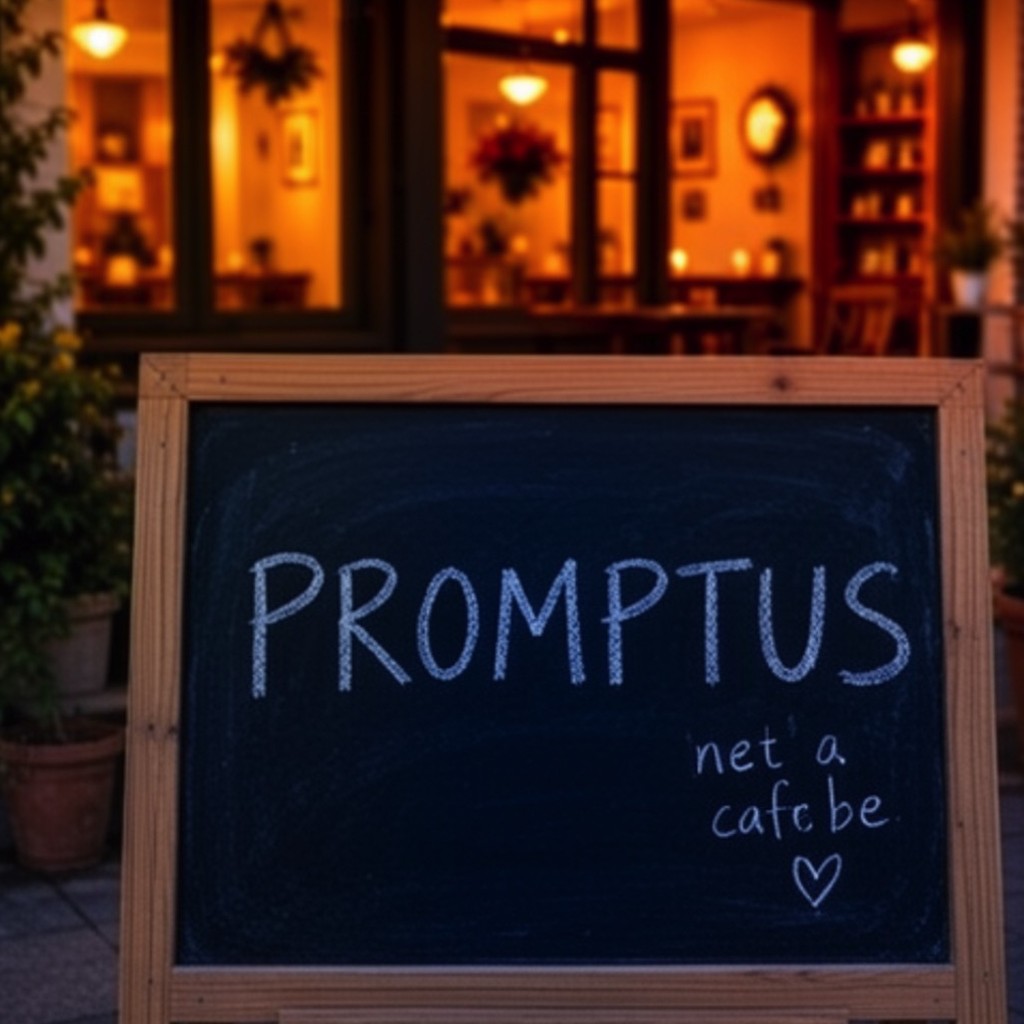



Measured results
Timed on a MacBook with an Apple A18 Pro and 8 GB of memory, using the prompt A chalkboard sign outside a cozy cafe that says “PROMPTUS”…
Credits
- MOSS-Image by OpenMOSS (Apache-2.0)
- 4-step merge by mischiefaudio, from akhaliq’s 4-step LoRA (Apache-2.0)
- stable-diffusion.cpp by leejet (MIT)
- Qwen3.5-9B GGUF by unsloth (Apache-2.0)
- FLUX.2 VAE by Black Forest Labs (Apache-2.0)
- MOSS-Image 8GB node and workflow (MIT), built and tested in Promptus: code on GitHub
Sources
- MOSS-Image Technical Report (arXiv 2610.23374) · on Hugging Face Papers
- OpenMOSS MOSS-Image-SFT model card
- Comfy-Org/MOSS-Image (ComfyUI repack, download count)
- Hugging Face text-to-image models, sorted by trending
- MOSS-Image 4-step merged GGUF
- MOSS-Image GGUF (leejet)
- stable-diffusion.cpp
- Intelligent Living: MOSS-Image, the open-source model teaching AI to spell