
%20(2).avif)
%20transparent.avif)

LTX-2 features include Loras, camera control, pose-driven motion, and 4K videos with audio.
LTX-2 is a DiT-based audio-video generation model designed to generate synchronized video + audio in one pass, with support for high frame rates and up to native 4K output.
In this guide, I’ll show you how to set up and use LTX-2 inside Promptus, including:
- Text-to-Video and Image-to-Video
- Full vs Distilled workflows (speed vs quality/storage tradeoffs)
- Adding LoRAs for camera moves/styles
- Saving your graph as a shareable workflow (CosyFlow/CosyFlows)
Promptus is especially useful here because it provides a smoother on-ramp for ComfyUI workflows (desktop and web options), and it supports offline usage when your models are already downloaded.
What you need
- Promptus (Desktop recommended for dependency stability) or Promptus Web if you don’t want local setup.
- Access to LTX-2 / LTX-Video ComfyUI workflows and model files.
- Enough disk space for models (Full mode can be large; Distilled/quantized options are smaller—your exact choices will determine requirements).
Promptus also supports running ComfyUI offline via its desktop workflow, and you can download models first while online.
Step 1. Update Promptus to the latest version
Why: newer builds typically ship with updated dependencies, nodes, and fewer “random ComfyUI errors.”
What to do
- Open Promptus.
- Check for updates (or reinstall the latest build if needed).
- Restart Promptus after updating.
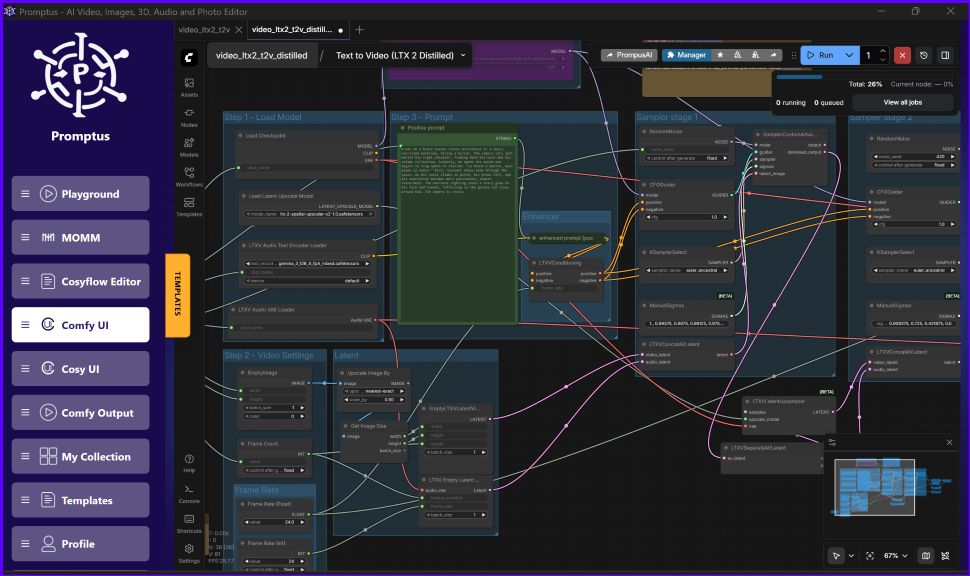
Step 2. Open the ComfyUI workspace in Promptus
What to do
- In Promptus, go to the ComfyUI tab
- Refresh the workspace if prompted to ensure the backend is running.
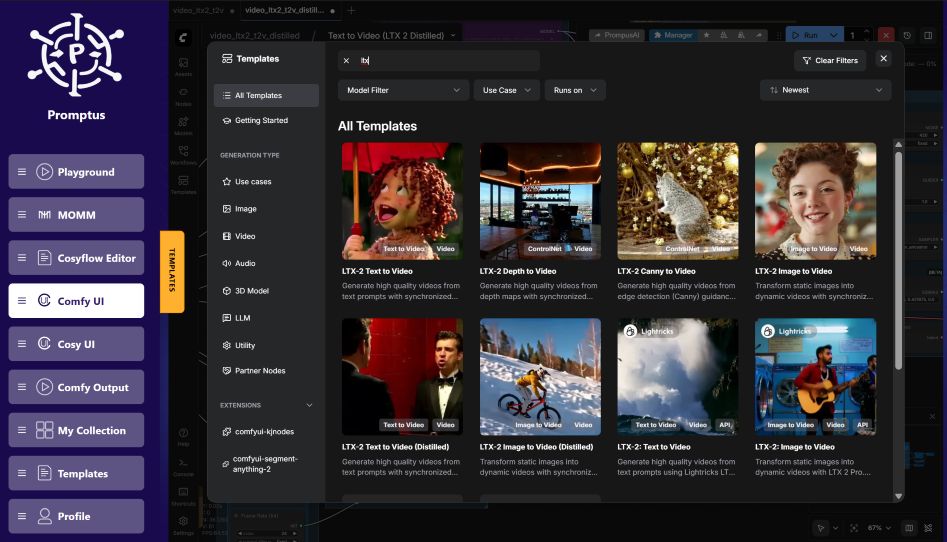
Step 3. Load the LTX-2 template workflow
Promptus provides a smoother path to ComfyUI workflows through its templates / CosyFlows concept.
What to do
- Open Templates / Workflows.
- Look for LTX Video / LTX-2 templates.
- Pick one to start:
- Text-to-Video (Full)
- Text-to-Video (Distilled)
- Image-to-Video (Full)
- Image-to-Video (Distilled)
- (Optional) Upscaler workflow
- (Optional) ControlNet workflow
Promptus’ LTX-2 features include Loras, camera control, pose-driven motion, and custom ComfyUI workflows.
Step 4. Understand “Full” vs “Distilled” before downloading models
This matters because it changes:
- Download size
- VRAM/RAM pressure
- Speed
- Sometimes quality
Practical guidance
- Full workflow: best quality/flexibility, but larger model footprint.
- Distilled workflow: faster and lighter, fewer steps, sometimes slightly reduced fidelity.
Step 5. Download model files and place them in the correct folders
LTX-2 is associated with Lightricks’ LTX-Video ecosystem; the official repository describes synchronized audio+video generation and 4K/high-FPS capability.
What to do
- Download the model checkpoints (and any required components referenced by the template).
- Place them into the matching ComfyUI directories (e.g., models/checkpoints, models/vae, models/loras, etc. — follow the folder hints inside the workflow nodes).
- Back in Promptus/ComfyUI, press the workflow refresh hotkey (many setups use R to refresh model lists, as your script mentions).
If your goal is offline generation: download all models while online, then switch Promptus to offline mode later.
Step 6. Text-to-Video: set prompt + core parameters, then run
What to do
- In the Text-to-Video workflow, locate:
- Prompt node (positive prompt)
- (Optional) negative prompt
- Resolution / FPS / duration / frames
- Steps / sampler settings
- Start conservative (short duration), then increase.
Good starter prompt structure
- Subject + environment
- Camera behavior (if desired)
- Lighting + style
- Action + timing
Example
“Close-up of a singer in neon-lit rain, cinematic lighting, slow dolly-in, subtle head movement, realistic texture, natural motion.”
Step 7. Add LoRAs camera moves, styles, effects
Your script calls out LoRAs as “small fine-tuned models,” useful for camera motion (e.g., dolly left), styles, actions, and VFX-like consistency boosts.
What to do
- Download the LoRA file.
- Place it in ComfyUI’s LoRA folder (commonly
models/loras). - Refresh the model list.
- Select the LoRA in the workflow’s LoRA loader nodes.
- Adjust strength/weight.
Tip
- If using a distilled flow, expect fewer steps; balance LoRA strength so it doesn’t overpower the base generation.
Step 8. Image-to-Video: animate from a starting frame
What to do
- Load the Image-to-Video (Distilled) template first (fast tests).
- Select the same model components you downloaded earlier.
- Upload an input image (your starting frame).
- Set resolution + frame count (or duration).
- Prompt what should change (motion, expression, environment) while keeping identity consistent.
Step 9. (Optional) ControlNet / pose-driven motion
Promptus specifically calls out OpenPose-driven motion and controllable camera behavior in its LTX-2 materials, which can help keep motion structured and repeatable.
What to do
- Load the ControlNet/OpenPose workflow template if available.
- Provide your pose reference (or motion reference, depending on the node setup).
- Generate and iterate.
Step 10. Save your workflow as a shareable “CosyFlow”
Promptus positions “CosyFlows” as a way to package and reuse ComfyUI workflows more cleanly.
What to do
- Save/export the workflow from inside the ComfyUI environment.
- Add a title, description, and any required model notes.
- Share it with collaborators (and include required downloads/paths).
Troubleshooting
- Models don’t show in dropdowns: they’re in the wrong folder or you didn’t refresh model lists.
- Out of memory: drop resolution, shorten duration, reduce batch size, prefer distilled/quantized models, or run on Promptus Web GPU.
- Weird motion/artifacts: add more prompt constraints, reduce LoRA strength, or try control/pose guidance.
LTX 2 Model notes
- Model family: LTX-2 / LTX-Video (Lightricks)
- What it generates: video + synchronized audio in one pass (foundation capability described by the official repo)
- Performance claims/features discussed publicly: high frame rates and native 4K support are highlighted by official materials/blogs
- Promptus integration: Promptus provides LTX-2 workflows and highlights controllability features like camera control and pose-driven motion
- Offline mode: Promptus documents switching to offline and the requirement to download models first