%20(2).avif)
%20transparent.avif)

This guide focuses on using Local Generation with NVIDIA GeForce RTX 4060 Laptop GPU, 8GB VRAM of Z-Image workflow.
Quick answer: Promptus runs Z-Image — including the quantized GGUF (Q2/Q4/Q8) versions — directly inside its built-in ComfyUI environment, so you can load and run the Z-Image workflow with no manual node setup, dependency installation, or model file management required.
The "Z-Image" models you see (Q2, Q4, Q8) are GGUF files. GGUF is a format designed to make massive AI models run on normal consumer graphics cards by "quantizing" (compressing) them.
What is Quantization? It reduces the precision of the model's internal numbers to save memory (VRAM). Think of it like lowering the bitrate on an MP3 file: the file gets smaller, and if you don't go too low, the quality difference is barely noticeable.
Prerequisites
- Promptus application installed and running.
- Active internet connection for the initial download of workflow files.
- Promptus Manager running in the background to handle downloads.
Phase 1: Locating and Installing the Workflow
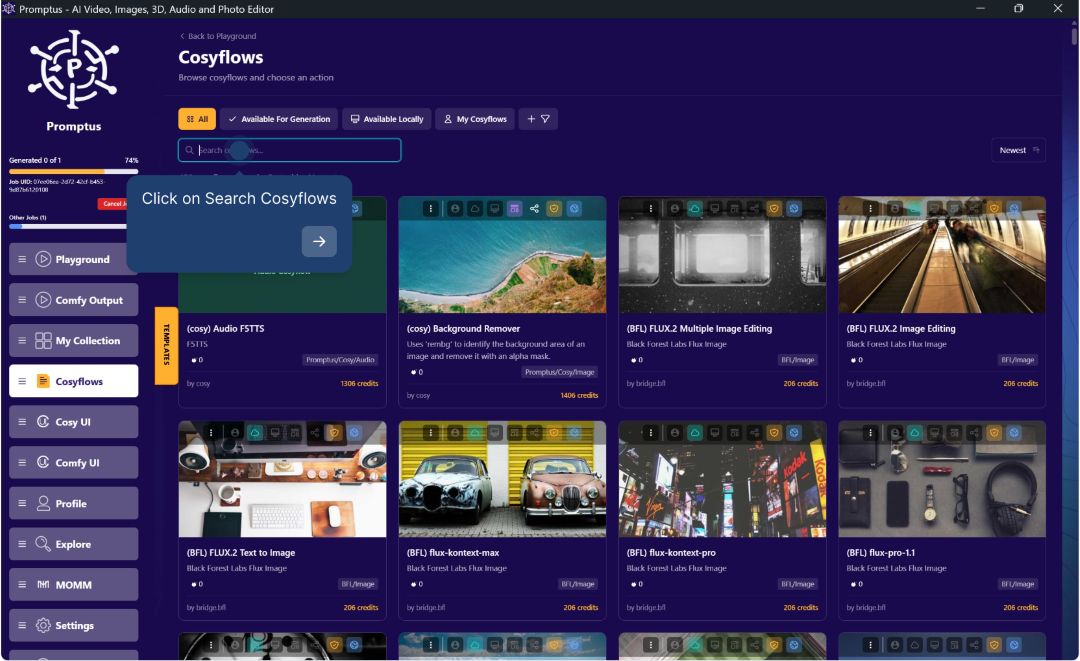
1. Access the Cosyflows Library
- Navigate to the Cosyflows tab in the left-hand sidebar menu.
- This section lists all available workflows for generation.
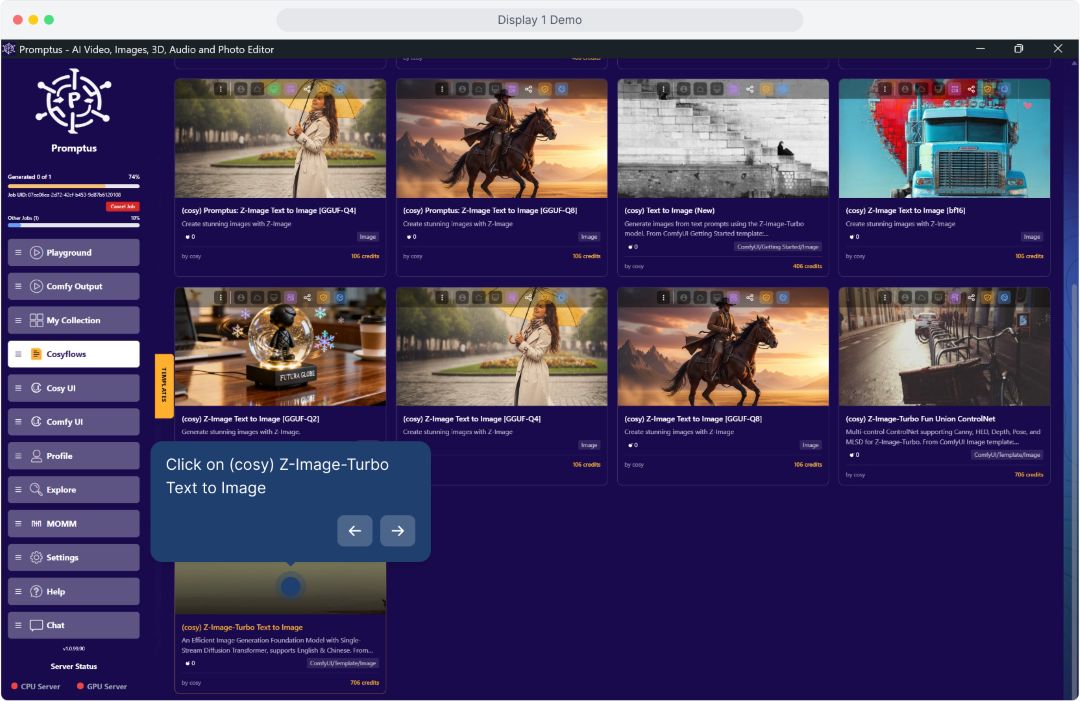
2. Search for Z-Image Workflows
- In the search bar at the top of the Cosyflows page, type
cosyorZ-Image. - Browse the results to find the specific workflow you wish to use (e.g.,
(cosy) Z-Image-Turbo Text to Imageor(cosy) Promptus: Z-Image Text to Image [GGUF-Q4]).- Note: GGUF versions (Q2, Q4, Q8) represent different quality/performance balances. Lower numbers (Q2) are faster but lower quality; higher numbers (Q8) are better quality but require more resources.
| Version | Quantization Level | VRAM Usage (Est.) | Quality | Speed | Recommendation |
|---|---|---|---|---|---|
| GGUF-Q2 | Low | ~4 - 5 GB | Lower | Fastest | Good for Testing. Use this to check if your prompts work quickly. Images may lack fine texture. |
| GGUF-Q4 | Medium | ~6 - 8 GB | High | Fast | ✅ BEST CHOICE. This is the "sweet spot" for your 8GB card. It fits entirely in your GPU memory, running fast with near-original quality. |
| GGUF-Q8 | High | ~12 - 14 GB | Max | Slow | Avoid. This exceeds your 8GB VRAM. It will overflow into your regular System RAM, slowing generation from seconds to minutes. |
| bf16 | Uncompressed | ~20+ GB | Max | Very Slow | Do Not Use. Too large for laptops; intended for high-end servers. |
3. Initiate Local Installation
- Hover over the card of your chosen workflow.
- Click the Menu button (three vertical dots) on the card or look for the action buttons.
- Select Install Locally from the dropdown menu.
- Alternatively, if you have already clicked into a workflow details view, look for the "Install Locally" button there.
Phase 2: Monitoring the Download
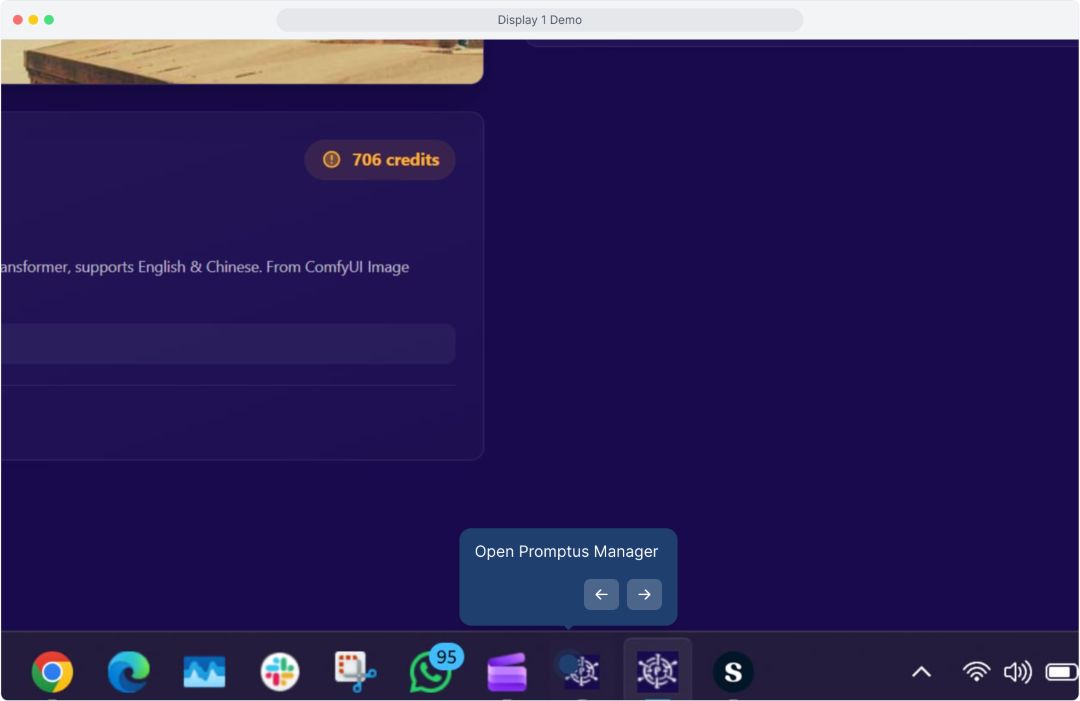
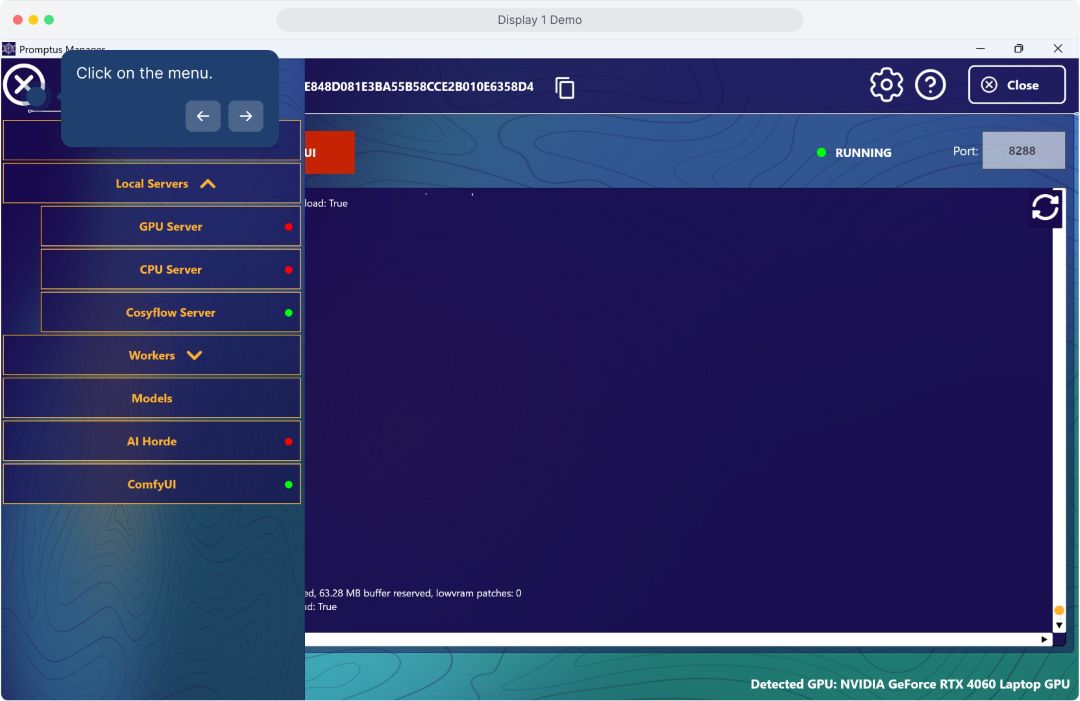
4. Open Promptus Manager
- Locate the Promptus Manager icon in your computer's taskbar or system tray (bottom of the screen).
- Click to open the Promptus Manager window.
5. Verify Download Status
- In the Promptus Manager, look at the Cosyflow List panel on the right side.
- You should see your selected workflow (e.g.,
(cosy) Image Generation) listed with a status indicator. - The main log window on the left will display detailed progress logs (e.g.,
phase=<Phase.DOWNLOAD..., percentage complete). - Wait until the download is complete and the logs indicate success.
Phase 3: Loading and Generating Images
6. Load the Installed Workflow
- Return to the main Promptus application window.
- Go back to the Cosyflows tab.
- Locate the workflow you just installed. It should now show options like Run Offline in Playground or Load in CosyUI.
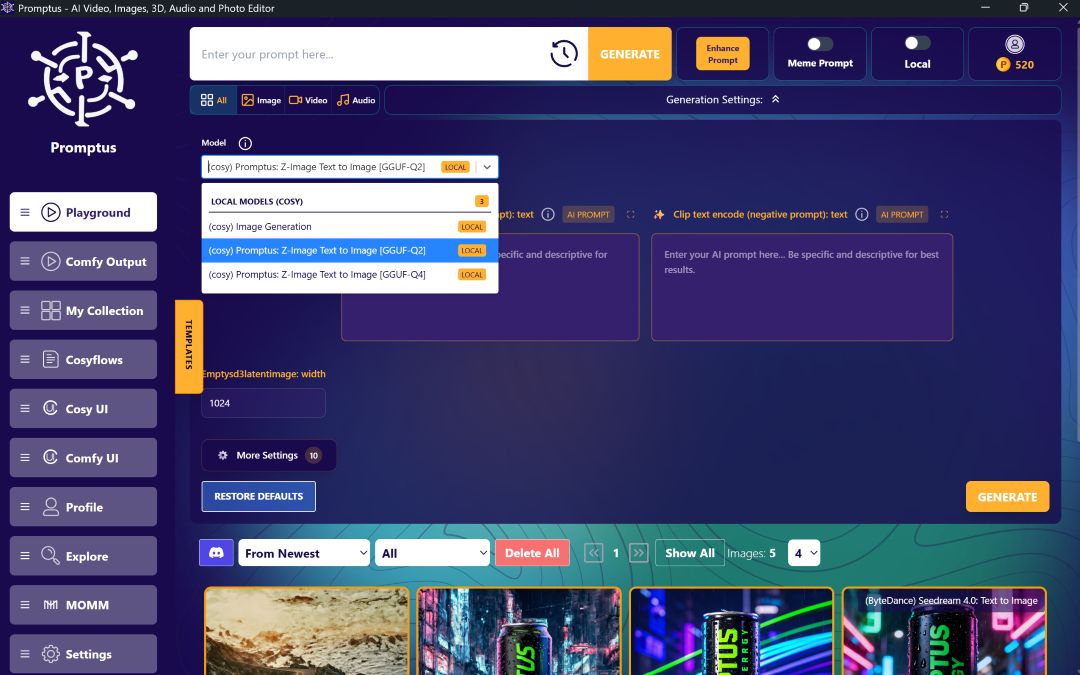
- Click Run Offline in Playground (or "Playground" from the sidebar if you want to switch views manually).
7. Configure Generation Settings
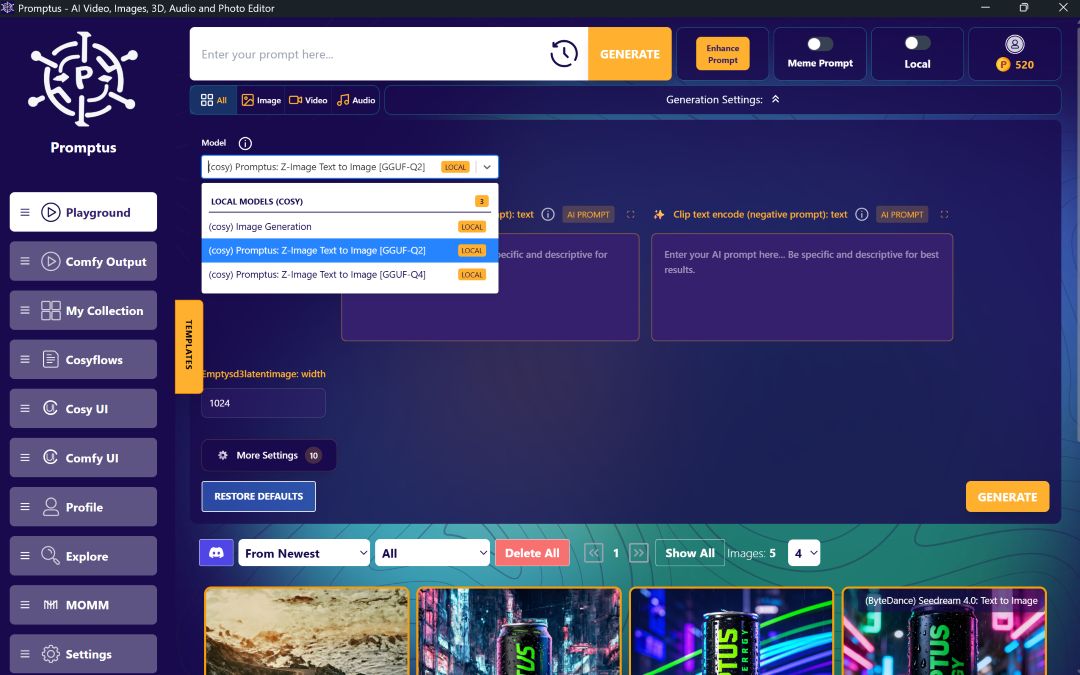
- Model Selection: In the Playground, look for the "Model" dropdown menu. Select the local version of the model you just installed (e.g.,
(cosy) Promptus: Z-Image Text to Image [GGUF-Q2] LOCAL). Ensure it has the LOCAL tag. - Enter Prompt: Type your description in the prompt box (e.g., "A futuristic city with flying cars").
- Settings: Adjust any other settings if needed (resolution, steps, etc.).
8. Generate
- Click the GENERATE button.
- The application will process the request using your local hardware. You can monitor the progress bar at the top or bottom of the generation window.
- Once finished, your image will appear in the gallery or output viewer below.
Troubleshooting Tips
- Download Stuck: If the download in Promptus Manager seems stuck, check your internet connection or try restarting the Promptus Manager.
- Server Status: Ensure the "Cosyflow Server" and "ComfyUI" status indicators in Promptus Manager are green (Running).
- Hardware Requirements: If image generation fails or crashes, try using a lower quantization model (e.g., switch from Q8 to Q2) or closing other resource-heavy applications.