How to Run the Z-Image Workflow in the Promptus ComfyUI
%20(2).avif)
%20transparent.avif)

Zimage AI model delivers photography-level realism, fast inference, powerful world understanding, and bilingual text rendering.
Alibaba’s Z-Image model is one of the most advanced open-source image generators available today — delivering photography-level realism, fast inference, powerful world understanding, and bilingual text rendering.
In this tutorial, you’ll learn exactly how to use Z-Image inside the Promptus app, even if you’re brand new to ComfyUI or node-based generation.
This guide teaches you step-by-step:
- What you need
- How to load the Z-Image workflow
- How to set up the models
- How to run your first generation
- How to use image-to-image
- How to use LoRAs
- How to get the best results
Let’s get started!
✅ 1. What You Need Before You Start
Promptus simplifies everything — you do not need to manually install ComfyUI.
You’ll need:
- The Promptus app (latest version)
- ~12–16GB VRAM GPU recommended
(but quantized GGUF versions can run on 4GB VRAM) - Internet connection for downloading models
Promptus handles:
✔ model downloading
✔ workflow loading
✔ folder management
✔ node linking
✔ graph execution
You only focus on creating.
✅ 2. Load the Z-Image Workflow in Promptus
Promptus ships several one-click CosyFlows presets for Z-Image. Rather than list every variant here (the full catalog is covered in our companion CosyTemplates roundup), these four cover the situations you'll actually run into in this tutorial — pick based on your hardware and how much control you need:
- Z-Image-Turbo: Text to Image — the template this tutorial is built around. Z-Image-Turbo uses a single-stream diffusion transformer architecture rather than the dual-stream design most diffusion models use, which is a big part of why it holds up at just 6–9 sampling steps instead of the 20–30 typical elsewhere. It’s also bilingual out of the box (English and Chinese prompts both work without a separate model), which matters if you’re prompting in anything other than English. Start here unless you have a specific reason not to — every setting in sections 4–6 below assumes this template.
- Promptus: Z-Image Text to Image [bf16] — the full-precision version of the same underlying model, with no quantization compression applied. bf16 (brain float 16) keeps the model’s full trained weight resolution, so you get the closest possible output to what Alibaba’s team actually trained — noticeably crisper fine detail (skin texture, fabric weave, small text) than any of the GGUF presets. The tradeoff is VRAM: this is the preset that needs the ~12–16GB the "What You Need" section recommends. If your GPU can handle it, this is the quality ceiling.
- Promptus: Z-Image Text to Image [GGUF-Q4] — a quantized version (z-image-Q4_K_M.gguf) built for exactly the situation this guide’s VRAM note flags: GPUs well under the recommended 12–16GB. GGUF quantization works by reducing the numeric precision of the model’s weights — Q4 keeps roughly 4 bits per weight instead of bf16’s 16 — which cuts memory use substantially while a "K-quant" scheme (the K_M suffix) preserves more of the important weights than a naive round-everything-down approach would. In practice, Q4 output holds up well against bf16 for most prompts; you’ll mainly notice the difference in fine texture under close inspection, not in overall composition or prompt-following.
- Z-Image-Turbo: Fun Union ControlNet — worth switching to once you outgrow prompt-only composition. This template layers a unified ControlNet branch onto the base Turbo model, supporting five conditioning types — Canny edge maps, HED soft edges, Depth, Pose, and MLSD line detection — through one shared model rather than five separate ones. It’s the more precise alternative to the denoise-strength approach covered in section 7’s image-to-image steps: instead of nudging an existing image toward a new prompt, you feed in a structural map (a pose skeleton, a depth map, an edge outline) and Z-Image fills in everything else while respecting that exact structure.
To load one:
- Open Promptus
- Go to CosyTemplates and search “z-image”
- Pick the variant above matching your hardware and task
- Click Load in ComfyUI or Run Online in Playground
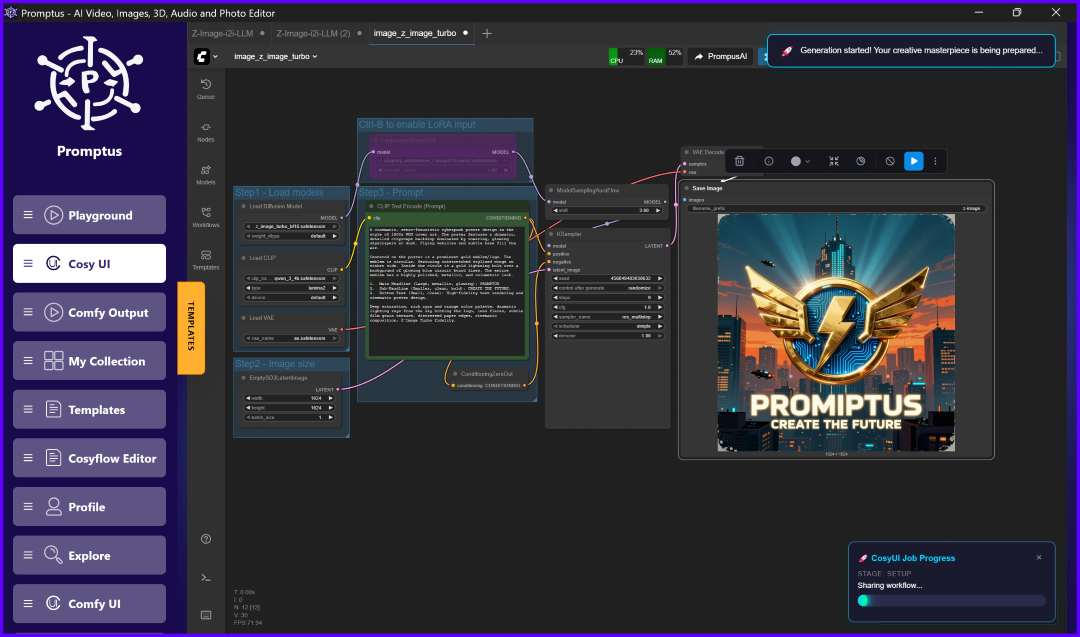
You’ll see a visually organized node graph including:
- UNet Loader
- CLIP Text Encoders (positive & negative)
- VAE Loader
- ModelSamplingAuraFlow
- KSampler
- VAE Decode
- Save/Preview node
This is your full Z-Image pipeline.
✅ 3. Load the Required Models
When you first load the workflow, Promptus will automatically detect missing models.
You will be prompted to download:
1. Zimage Turbo UNet
File example:z_image_turbo_bf16.safetensors
2. Qwen-3 4B (CLIP Text Encoder)
File example:qwen_3_4b.safetensors
3. Zimage VAE
File example:ae.safetensors
Click Download All Models, and Promptus places them in the correct folders automatically.
✔ No file management
✔ No manual paths
✔ No directory confusion
After download, the workflow updates automatically.

✅ 4. Configure Your Prompt and Negative Prompt
Inside the CLIP Text Encode (Positive Prompt) node:
Type something like:
A cinematic portrait of a young woman standing in warm sunset light,
shot on a 50mm lens, ultra-realistic, detailed skin texture
Inside CLIP Text Encode (Negative Prompt):
blurry, distorted, bad anatomy, deformed hands, low-resolution, ugly
Promptus highlights your tokens and shows live text encoder feedback.
✅ 5. Choose Your Sampling Settings
Open the KSampler node.
Recommended settings for Z-Image Turbo:
- Seed: randomize
- Steps: 6–9 (Turbo excels at low steps)
- CFG: 1.0–3.0
- Sampler: Euler or Euler A
- Scheduler: Simple
- Denoise: 1.0
Promptus includes Z-Image presets you can load instantly.
✅ 6. Generate Your First Z-Image Creation
Once your prompt, sampler, and models are set:
- Press Run
- Watch the pipeline execute nodes in sequence
- See your result in PreviewImage
On a 16GB GPU, images usually generate in:
4–12 seconds
On a 4–6GB GPU (quantized GGUF):
10–20 seconds
Promptus automatically optimizes memory usage.
✅ 7. Using Z-Image for Image-to-Image (I2I)
Promptus includes a dedicated img2img workflow.
To use it:
- Click Load Image
- Drop in your source image (portrait, artwork, etc.)
- It flows into VAE Encode
- Adjust denoise in the KSampler:
- 0.2–0.4 → subtle edits
- 0.5–0.7 → medium changes
- 0.8–1.0 → dramatic remixing
- Run workflow
Z-Image performs high-quality:
- face fixes
- stylistic conversions
- retouching
- realism upgrades
- anime ↔ realism conversions
All with very few artifacts.
✅ 8. Using LoRAs with Z-Image
Promptus has built-in LoRA support.
To use one:
- Download a LoRA (from CivitAI, HF, etc.)
- Place in
/loras(Promptus can do this automatically) - Add a LoRA Loader node to the graph
- Connect it after the UNet Loader
- Set strength (0.5–1.0 recommended)
- Add trigger words to your prompt
You can chain multiple LoRAs together, such as:
- a portrait-style LoRA
- a face-enhancement LoRA
- a clothing/style LoRA
Z-Image handles all of them gracefully.
✅ 9. Tips for Best Results
✔ Use shorter prompts
Z-Image understands world concepts extremely well — no need for long SDXL-style strings.
✔ Keep steps low (6–9)
Z-Image Turbo is built for speed.
✔ Use strong negative prompts
It responds well to clear exclusion terms.
✔ Try different camera styles
Examples:
- 50mm portrait
- IMAX wide-angle
- Fujifilm aesthetic
- F2.0 shallow DOF
✔ Experiment with denoise strength
This dramatically alters artistic output.
🎉 You’re Ready to Create with Z-Image in Promptus
You now know how to:
✔ Load a Z-Image workflow
✔ Install necessary models
✔ Write strong prompts
✔ Adjust sampler settings
✔ Use img2img
✔ Load LoRAs
✔ Optimize for your GPU
Promptus makes Z-Image easier to use than any standalone ComfyUI installation — and unlocks its full potential for creators, artists, and developers.