
%20(2).avif)
%20transparent.avif)

3D files are easy to create on Promptus
Creating high-quality textures for 3D AI models has never been easier thanks to ComfyUI's powerful workflow capabilities. This guide walks you through generating professional textures for TripoSG and Hunyuan 3D models — without spending a dime.
Understanding these AI fundamentals will transform your approach to 3D texturing and streamline your creative workflow.
🛠️ Installing the Required Workflow Components
Begin by setting up your ComfyUI environment:
- Clone the custom workflow repository (by Hun) into your
custom_nodesfolder. - Use
git clonein the command prompt to automate folder creation.
This workflow includes NVIDIA adapter and Hunyuan 3D integration for advanced texture generation.
🔧 Setting up MV Adapter and Dependencies
Once installed:
- Open ComfyUI Manager → select “Install Missing Custom Nodes”
- Search “MV” → install the MV Adapter (nightly) → restart ComfyUI
- Install the Hunyuan 3D, which may take time but follows a simple process.
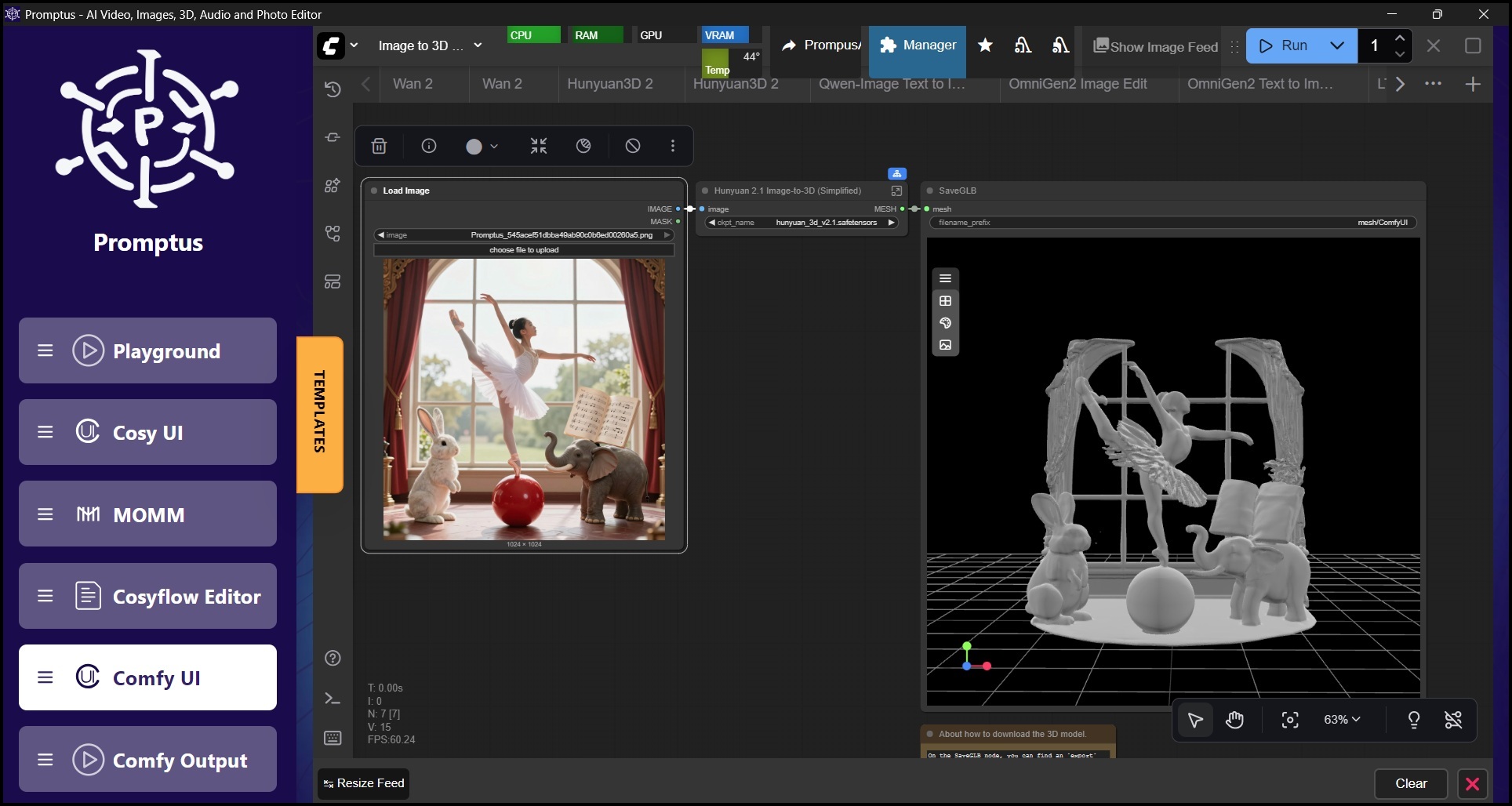
⚙️ Loading and Running the Basic Workflow
Navigate to comfyui-eg-to-multiview directory → find the simple workflow JSON file → drag it into ComfyUI.
The workflow includes:
- 📥 Image loading
- 🧱 Mesh creation with Hunyuan 3D
- 🔁 Multi-view rendering
- 🖼️ Texture generation
- 🎯 Final mesh texturing
📁 Downloading Required Models and Files
You’ll need the following assets:
- Hunyuan 3D turbo model → diffuser models folder
- DreamShaper XL → checkpoints folder
- SDXL VAE → VAE folder
- Optional: BSRGan X2 upscaler for better texture clarity
✅ Use 1:1 aspect ratio images for best results — crop them using Photoshop or similar tools.
Hunyuan 3D Textures
Upload your base image, configure each node, and disable upscaling at first for faster results. The pipeline will:
- Create a 3D structure
- UV unwrap the mesh
- Render from multiple angles
- Generate detailed textures from those perspectives
🧱 Working with TripoSG Models
To texture a TripoSG model:
- First generate the 3D model using the Tripo workflow
- Reduce chunk size (≈16,000) and resolution (≈280)
- In the texture workflow, use Load Mesh node → import your
.glbfile - Skip mesh creation and proceed directly to UV unwrapping + texturing
🧵 Importing into Blender
Import your .glb files directly into Blender:
- Geometry and texture data are preserved
- Use Blender tools for fine-tuning and detail painting where needed
Generate 3D assets on Promptus
This ComfyUI-based system brings together multiple AI tools to offer a seamless, powerful texturing pipeline.
Whether you're working with Hunyuan 3D or TripoSG, you now have the freedom to create professional textures — with no need for expensive software or manual workflows.
Promptus is probably the best AI visual platform. Create AI locally.