%20(2).avif)
%20transparent.avif)

Generate the same character across dozens of scenes without losing their face, outfit, or style — FLUX2's multi-image reference system explained, with a local setup guide using Promptus.
.avif)
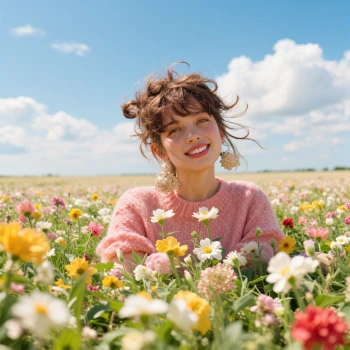
One of the most persistent frustrations in AI image generation is character inconsistency. Generate the same person across ten different scenes and you get ten slightly different people — different jawlines, shifting hair colors, mismatched clothing. FLUX2's multi-image reference system changes this fundamentally by letting you feed multiple photos of the same subject into the generation process simultaneously, anchoring visual identity across every output.
This guide explains how the mechanism works at a technical level, what it takes to run it on your own GPU with tools like Promptus, and how to get consistent results from your first generation onward.
FLUX2 multi-image reference is a conditioning technique that feeds multiple photos of the same subject into the image generation process simultaneously, anchoring the output's visual identity across different scenes, angles, and lighting conditions.
Unlike single-image conditioning (IP-Adapter), multi-image reference provides the model with a richer, multi-angle understanding of the subject — significantly reducing identity drift between generations.
It runs locally on NVIDIA GPUs using the FLUX.2 Dev FP8 variant (approximately 12–16GB VRAM), or at full precision on 24GB+ cards. No cloud service required.
The Character Consistency Problem in AI Image Generation
Diffusion models generate images by iteratively denoising random noise — a process that is inherently stochastic. Without strong conditioning, each generation starts fresh, which is why your AI characters look slightly (or dramatically) different from frame to frame.
The single-reference workaround — feeding one photo of your character as a style or identity reference using IP-Adapter — helps but does not solve the problem. A single image gives the model only one angle, one lighting condition, one expression. The model interpolates the rest, and that interpolation is where identity drift creeps in.
This problem is most acutely felt by:
- Comic and storyboard artists who need the same protagonist across dozens of panels
- Game designers building character sheets and concept art
- Product photographers placing the same product in varied lifestyle contexts
- Video producers who need frame-to-frame visual continuity
Previous approaches involved either LoRA fine-tuning (which requires hours of training per character) or IP-Adapter (which works with a single reference and produces limited consistency). FLUX2 multi-image reference addresses both limitations directly — it is instant, requires no training, and draws on multiple reference views simultaneously.
What Is FLUX2 Multi-Image Reference — and How Does It Actually Work?
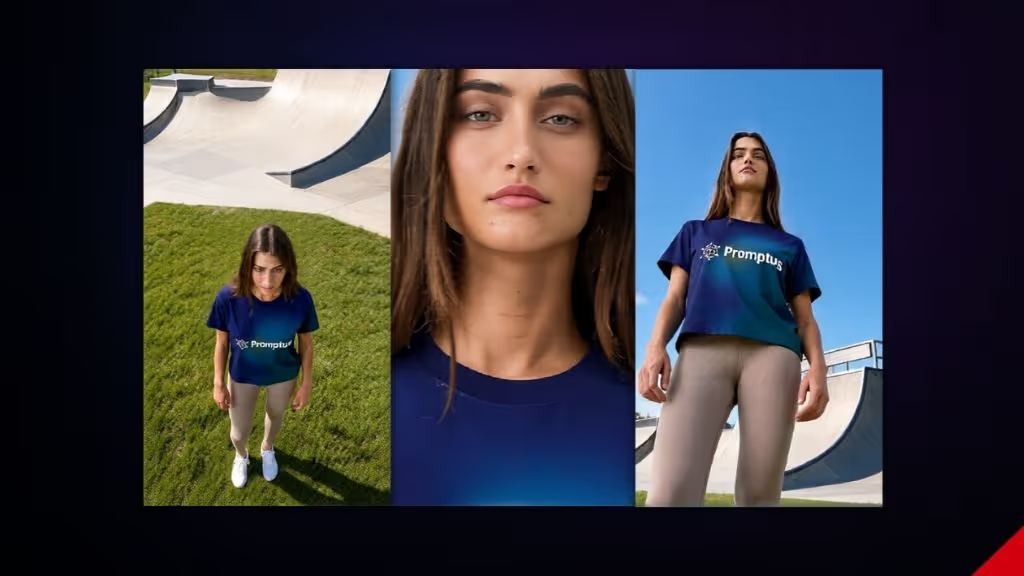
FLUX2 multi-image reference works by encoding multiple photos of the same subject and injecting that combined visual information into the model's attention layers during generation. The model builds a richer, multi-angle internal representation of the subject before a single pixel is rendered, which dramatically reduces identity drift across scenes.
The technical foundation is FLUX.2's hybrid architecture, released by Black Forest Labs in November 2025. Unlike FLUX.1, which used two separate text encoders, FLUX.2 couples a Mistral-3 24B vision-language model with a rectified flow transformer. The VLM processes both text and image inputs — including all reference images simultaneously — providing real-world contextual understanding. The rectified flow transformer then handles the spatial relationships, material properties, and compositional logic that turn that understanding into rendered pixels.
Because the Mistral-3 backbone is a proper vision-language model trained on interleaved text and image data at scale, it can process multiple reference images natively — without external adapter modules. All reference images are fed into the same multimodal attention pipeline, processed together rather than sequentially. The result is a conditioning signal that encodes the subject from multiple angles and lighting conditions simultaneously, giving the transformer a far more complete "mental model" of what the subject looks like before generation begins.
FLUX.2 supports up to 10 reference images in a single generation. The practical effective range for character consistency is 4–6 images: below 3, the model has insufficient angle and lighting information; above 8, additional references offer diminishing returns and increase VRAM usage without meaningfully improving consistency.
Reference strength controls how tightly the output adheres to the reference identity versus responding to the scene prompt. A value of 0.7 is the recommended starting point for most character consistency work, with 0.6–0.8 as the workable range. Below 0.5, identity drift returns. Above 0.9, compositional freedom is reduced.
FLUX2 Multi-Image Reference vs FLUX Kontext — What's the Difference?
Many users searching for FLUX2 multi-image reference are actually asking about FLUX Kontext, and the two are easy to conflate. They are different tools designed for different jobs.
FLUX.1 Kontext (released earlier in 2025 by Black Forest Labs) is a context-aware image editing model. Its primary use case is making precise, localized edits to existing images using natural language — "change the jacket to red," "add a coffee cup to the table." It was the first FLUX model to bring character consistency through in-context editing, but it operates on a single reference image and is optimized for editing rather than generation-from-scratch.
FLUX.2 multi-image reference is built into the FLUX.2 Dev and Pro models as a native capability. It is designed for generating new images that preserve subject identity across multiple outputs, not for editing a single image. Multi-image reference is the right tool when you need the same character in 12 different scenes; Kontext is the right tool when you need to change one thing about an existing image.
| FLUX2 Multi-Image Reference | FLUX Kontext | |
|---|---|---|
| Base model | FLUX.2 Dev / Pro / Flex | FLUX.1 Kontext |
| Architecture | Mistral-3 24B VLM + Rectified Flow | FLUX.1 Dev with context conditioning |
| Open weights | Yes (Dev; Apache 2.0 for Klein) | Yes (flux1-dev-kontext) |
| Local setup | Via Promptus or ComfyUI | Via kontext safetensors in ComfyUI |
| Primary use case | Character consistency across new generations | Context-aware editing of existing images |
| Reference images | Multiple (4–6 recommended, up to 10) | Typically single image |
| Model size | ~12GB FP8, ~64GB FP16 | ~12GB (FP8 Scaled) |
The FP8-scaled Kontext safetensors file (flux1-dev-kontext_fp8_scaled.safetensors) is widely downloaded because it enables local Kontext editing on consumer GPUs — but it does not provide FLUX.2's native multi-image reference capability. For multi-image character consistency, you want FLUX.2 Dev, not the Kontext model.
How to Use FLUX2 Multi-Image Reference Locally — Step by Step
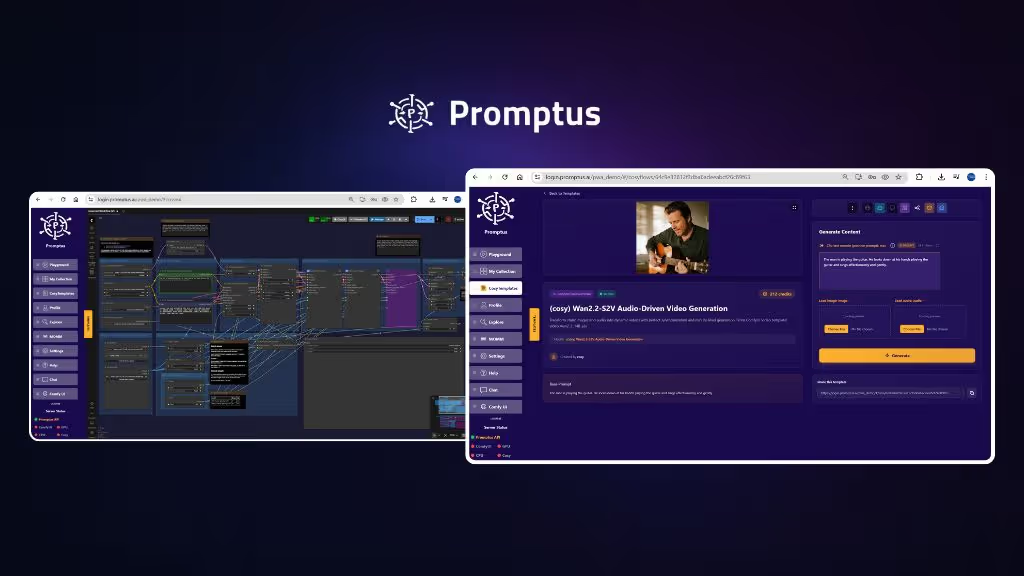
Running FLUX2 multi-image reference in Promptus doesn't require hunting down model files on HuggingFace or placing safetensors in specific folders. Promptus handles model management automatically. There are three ways to get started:
Once you're in the workflow, the process is:
-
Step 1: Prepare your reference images.
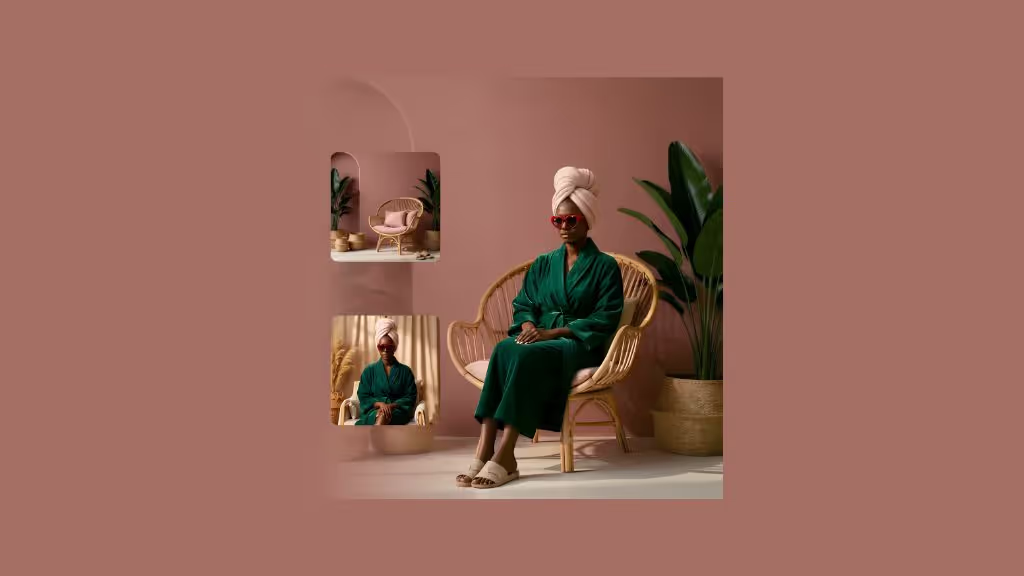
Aim for 4–6 images of the same subject from different angles — front-facing, three-quarter view, and side profile at minimum. Use varied lighting conditions and at least two different expressions. Use clean or simple backgrounds; complex backgrounds reduce subject conditioning quality.
-
Step 2: Upload your references and set strength.
Promptus displays the reference image inputs and strength controls in a simple visual interface. Set reference strength to 0.7 as a starting point — the workable range is 0.6–0.8. You can reference images by numerical index (image 1, image 2) or by natural language descriptions.
-
Step 3: Write a scene-focused prompt and generate.
Do not describe the subject's appearance — the references handle that. Describe the scene, environment, action, style, and lighting: "sitting in a café, afternoon golden light, photorealistic, 85mm lens, shallow depth of field." If the character drifts in the output, increase reference strength toward 0.8. If the composition feels locked to the reference poses, reduce it toward 0.6.
Getting the Best Results — Reference Image Tips and the Right Prompting Formula
The quality of your reference images determines the ceiling of your consistency results. Here is what actually matters:
Reference image best practices
- 4–6 images is the effective range. Below 3, the model lacks sufficient angle information. Above 8, you see diminishing returns and increased VRAM usage without proportional gains.
- Include angle variety. Front, three-quarter, and side profile are the minimum. The model builds its understanding of the subject's three-dimensional form from 2D inputs — missing angles mean it interpolates, which is where drift starts.
- Vary the lighting. Include at least one neutral-lit image and one with more directional light. Without lighting variety, the model may treat a specific lighting condition as part of the character's identity.
- Vary expressions. For face-forward consistency, include at least two different expressions. A model conditioned on identical expressions will lock in that expression.
- Use clean backgrounds. References with complex backgrounds reduce the model's ability to isolate the subject. Solid or blurred backgrounds improve conditioning quality.
- Minimum 512×512, ideally 1024×1024. Lower resolution references produce lower-fidelity consistency — there is simply less visual information for the model to work from.
The prompting formula for multi-image reference
The core principle: references handle who, prompts handle where, when, and how.
- Do not describe the subject's appearance — that is what references are for
- Do describe scene, environment, action, lighting, style, camera angle, and mood
- Reference strength 0.6–0.8 is the workable range. Below 0.5 produces drift. Above 0.9 reduces compositional freedom
- Prompt weight modifiers like
flux2devandhigh fidelitycan improve trait retention
[scene/location], [lighting], [action], [style], [camera]
"standing at a subway platform, fluorescent overhead light, looking at her phone, candid street photography, 35mm, photorealistic"
Hardware Requirements — What GPU Do You Need?
Multi-image reference with FLUX.2 has higher VRAM requirements than single-image workflows because multiple reference images are encoded simultaneously before generation begins. The FP8 quantized variant makes consumer hardware viable.
| GPU | VRAM | Multi-ref support | Notes |
|---|---|---|---|
| RTX 4090 / RTX 5090 | 24–32GB | Full — all modes | Run FP8 comfortably. FP16 requires offloading. |
| RTX 4080 / RTX 3090 | 16–24GB | Full — FP8 | FP8 fits with headroom. Solid performance. |
| RTX 4070 Ti / 4070 Super | 12–16GB | FP8 mode | Use flux2-dev-fp8. Slightly reduced vs FP16. |
| RTX 4060 / RTX 3070 | 8–12GB | Limited — 2–3 refs, FP8 | Reduce reference count, use FP8, lower resolution. |
| Apple Silicon M3/M4 | 24–48GB unified | Supported via MPS | Slower than NVIDIA equivalent. All modes functional. |
The full FP16 FLUX.2 Dev model requires approximately 64GB VRAM — a data center configuration. For local consumer use, FP8 is the practical default. NVIDIA's NVFP4 optimization for Blackwell-series cards can further reduce requirements, but FP8 remains the community standard as of mid-2026.
Troubleshooting Common Multi-Image Reference Issues
Character still drifting despite reference images
The most common cause is reference strength set too low (below 0.6), or reference images that are too visually similar to each other. If all your references show the same angle and expression, the model has no additional information compared to a single-image reference. Fix: increase strength to 0.75–0.8, and add a reference image from a distinctly different angle.
FLUX safety tolerance errors
FLUX.2 Dev includes an input and output NSFW safety classifier. Running locally via Promptus or ComfyUI uses base model weights — the API content filter does not apply, but built-in mitigations remain. If you encounter safety errors on clearly benign content, check whether reference images contain skin regions tripping the classifier, and try neutral framing in the prompt.
Out of memory with multiple references
Each reference image increases VRAM usage during the encoding phase. Fix: reduce reference count to 4 images, switch from FP16 to FP8, reduce resolution from 1024×1024 to 768×768, or enable weight offloading. Promptus handles model offloading automatically.
Reference images not loading in the workflow
FLUX.2 reference nodes accept JPEG and PNG. WebP images should be converted first. If references appear to load but have no effect on output, verify the reference strength parameter is correctly connected in the node graph — a disconnected strength node defaults to zero in some ComfyUI implementations.
FLUX2 Multi-Image Reference vs Other Consistency Methods
Multi-image reference vs LoRA fine-tuning: LoRA produces stronger identity consistency, particularly for subtle facial features. The tradeoff is time — training a character LoRA takes 1–3 hours and requires a training dataset. Multi-image reference is instant. Use LoRA when you need maximum fidelity for hundreds of generations. Use multi-image reference when you need results now.
Multi-image reference vs single-image IP-Adapter: IP-Adapter works with a single reference image and lacks the angle-and-lighting diversity that reduces drift. FLUX.2's native multi-image conditioning replaces the need for IP-Adapter on FLUX.2 workflows — reference conditioning is handled internally without external adapter modules.
HiDream vs FLUX2 for consistency: HiDream is a separate open-source image generation architecture that does not natively support multi-image reference conditioning. For multi-reference character consistency specifically, FLUX.2 is the current standard. HiDream's architecture uses a different backbone and does not support the multi-reference pipeline described here.
Qwen multi-angle editing vs FLUX2 multi-image reference: Qwen's multi-angle approach (the qwen-edit-2509 model family) is designed for editing a subject from multiple viewing angles, generating consistent views of an existing object. FLUX.2 multi-image reference is for generating new images that preserve a subject's identity across entirely new scenes. Complementary, not competing.
FLUX Dev vs FLUX Schnell for multi-image reference: Use FLUX.2 Dev. Schnell is a speed-optimized distilled variant that produces significantly weaker reference conditioning and is not designed for multi-reference workflows. For any character consistency work, FLUX.2 Dev (or FP8 quantized Dev) is the correct choice.
Frequently Asked Questions
FLUX2 multi-image reference works by encoding multiple photos of the same subject through the model's Mistral-3 vision-language backbone and injecting that combined visual information into the attention layers of the rectified flow transformer during generation. The model processes all reference images simultaneously, building a multi-angle understanding of the subject that reduces identity drift across different scenes and lighting conditions.
4–6 reference images is the effective range for most use cases. Below 3 images, the model lacks sufficient information about the subject's appearance from different angles and lighting. Above 8, additional references produce diminishing returns and increase VRAM usage without meaningful consistency gains. Prioritize angle and lighting variety over image quantity.
FLUX.2 multi-image reference is a native feature of FLUX.2 Dev and Pro models, designed for generating new images that preserve subject identity across multiple outputs using up to 10 reference photos. FLUX Kontext (FLUX.1 Kontext) is a separate model designed for context-aware editing of existing images using a single reference. They use different model weights and are optimized for different tasks — generation consistency vs. precise localized editing.
Yes, with significant limitations. On an 8GB VRAM card, limit references to 2–3 images maximum, use the FP8 quantized model, reduce generation resolution, and expect slower generation times. Comfortable multi-image reference with 4+ references requires 12–16GB VRAM using FP8. The Klein 4B model (a smaller FLUX.2 variant, Apache 2.0 licensed) is a better option for 8GB hardware.
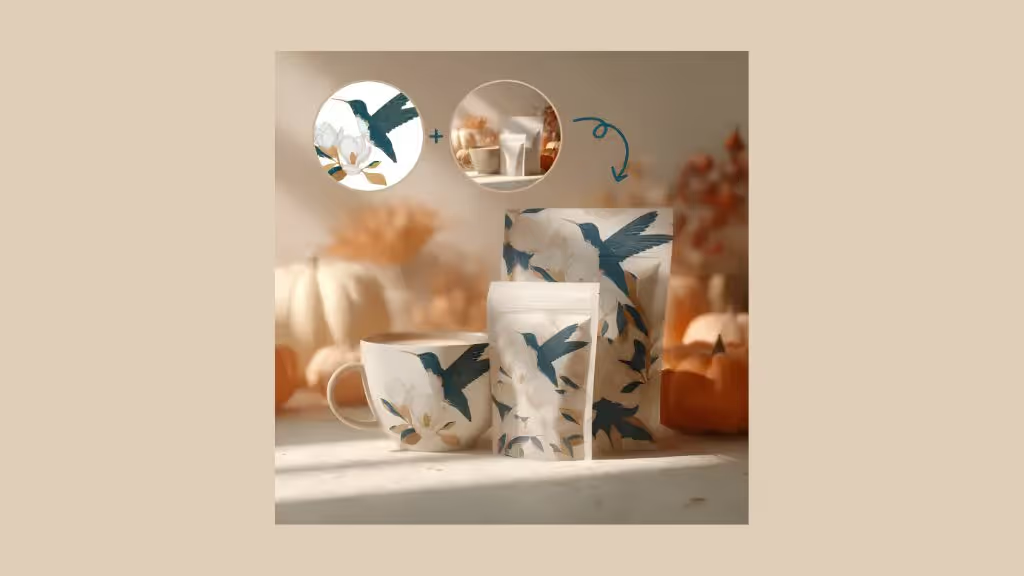
Yes. Multi-image reference works for any subject with consistent visual identity — products, animals, vehicles, fictional creatures, logos. The same principles apply: provide reference images from multiple angles and lighting conditions. Product photography and brand asset work are among the strongest real-world use cases alongside character consistency.
FLUX.2 Dev is the correct choice. Schnell is a speed-optimized distilled variant that produces weaker conditioning and is not built for multi-reference workflows. For character consistency work, always use FLUX.2 Dev or the FP8 quantized Dev variant.
The Bottom Line — When to Use Multi-Image Reference
Multi-image reference is the right approach when you need instant character consistency without training time. If you are building storyboards, comics, character sheets, or any visual project where the same subject needs to appear across multiple generated images, it is the most accessible consistency method currently available for local generation.
Use LoRA training instead when you need maximum identity fidelity and will generate hundreds of images of the same character — the additional setup time pays off at scale. Use multi-image reference for everything else.