
%20(2).avif)
%20transparent.avif)

ComfyUI ControlNet Guide for Precision AI Workflows
Added preprocessor comparison table and expanded VRAM optimization section for SDXL workflows.
If you want exact control over AI image generation instead of hoping for good outputs, ControlNet changes everything. This guide shows you how to use ControlNet in ComfyUI to build workflows that respond precisely to your creative direction. You will learn installation through ComfyUI Manager, preprocessing setup, and parameter tuning that actually works in production.
What you will build or learn
- A complete ControlNet workflow from sketch or reference image to final output
- How to choose and configure preprocessors for different control types
- Strength and conditioning tuning for subtle or dramatic control effects
- Troubleshooting for common ControlNet failures including blank outputs and weak conditioning
- Local versus cloud execution tradeoffs for batch processing
- Advanced multi-ControlNet stacking for complex compositions
Prerequisites
- Promptus with ComfyUI installed and running, version 0.2.0 or later recommended
- At least 8GB VRAM for SD1.5 workflows, 12GB minimum for SDXL
- A base checkpoint model downloaded, such as Stable Diffusion 1.5 or SDXL
- Basic familiarity with nodes and connections in ComfyUI
- ComfyUI Manager installed for easy model downloads
Step-by-step tutorial
Step 1: Install ControlNet models through ComfyUI Manager
Open ComfyUI and click the Manager button in the interface. Navigate to Install Models. Search for ControlNet and you will see a list organized by model version and control type. For SD1.5, download control_v11p_sd15_canny for edge detection. For SDXL, download control-lora-canny-rank256 which uses less VRAM.
The Manager handles file placement automatically. Models install to ComfyUI/models/controlnet. If you prefer manual installation, download from the official ControlNet repository and place files in that same directory.
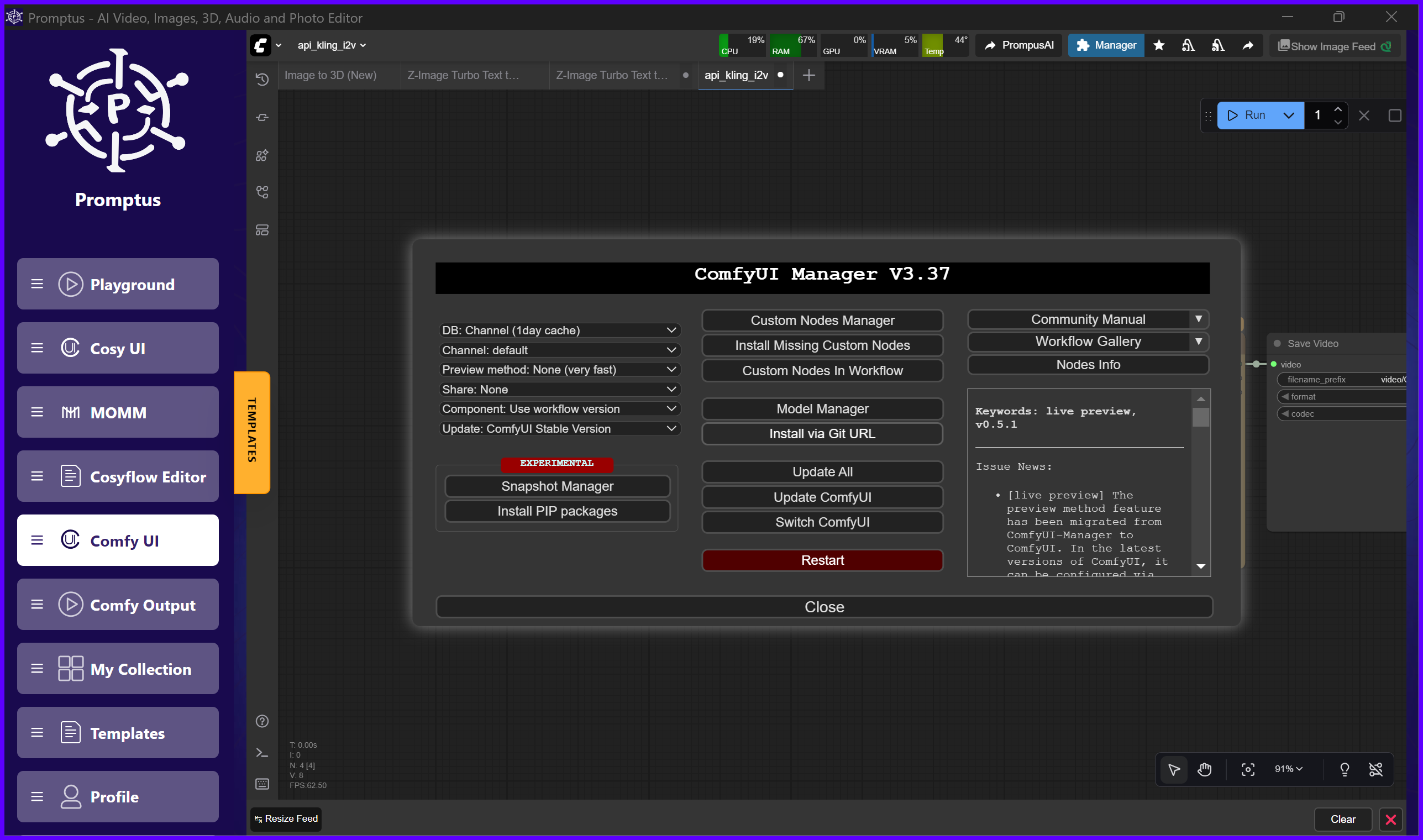
Step 2: Install ControlNet preprocessor nodes
In ComfyUI Manager, go to Install Custom Nodes. Search for ComfyUI's ControlNet Auxiliary Preprocessors. Install this package. It adds automatic preprocessing nodes that convert your images into the edge maps, depth maps, or pose skeletons that ControlNet expects. Without these nodes, you would need separate software like Photoshop or Python scripts to prepare control images. The preprocessor nodes integrate directly into your workflow and update in real time.
Step 3: Create a New Workflow
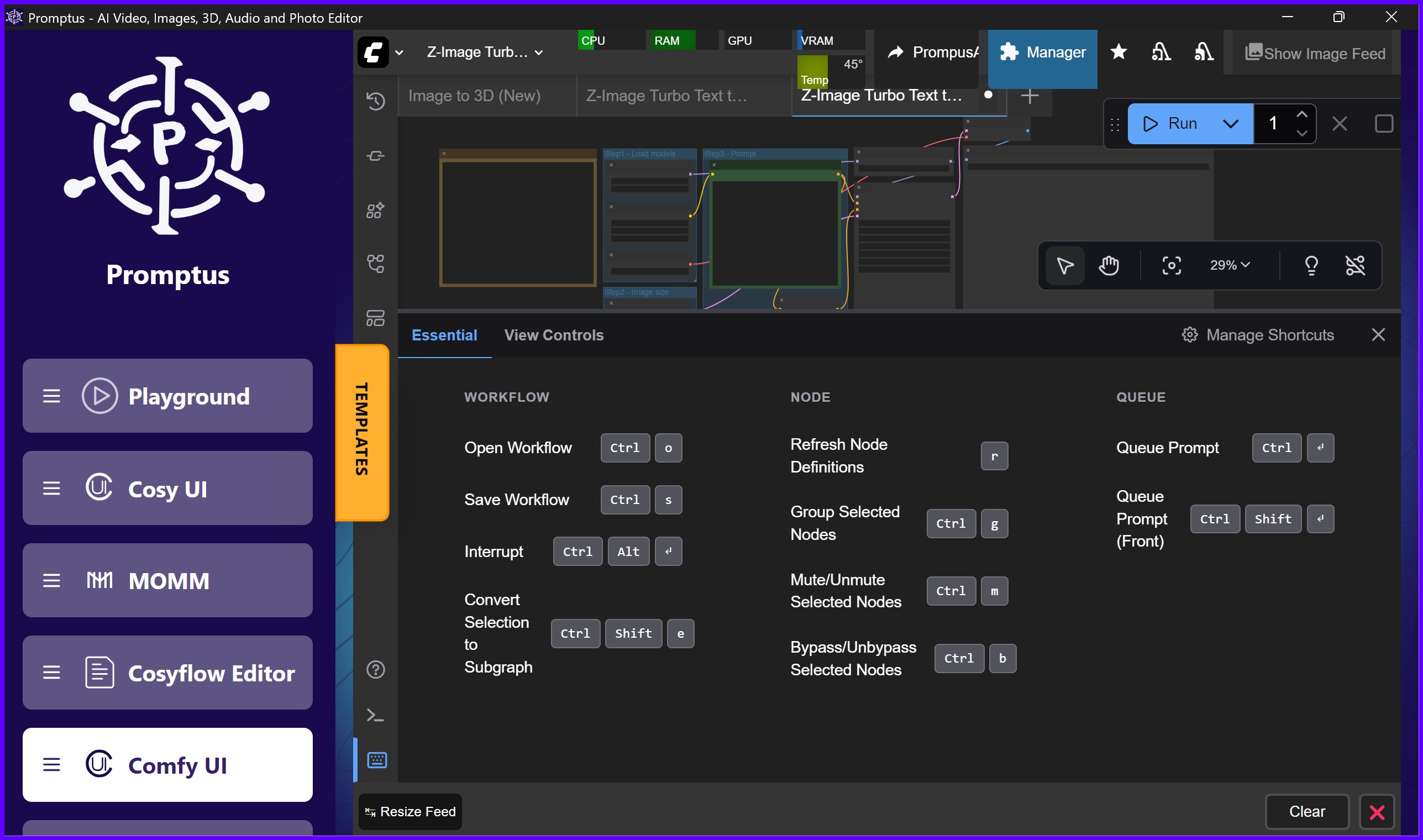
Create a new workflow. Add a Load Image node for your control reference. Add a Canny Edge Preprocessor node if you are working with line art or sketches. Connect your Load Image output to the preprocessor input.
Add a Load Checkpoint node and select your base model. Add an Apply ControlNet node.
Connect the preprocessor image output to the control image input on Apply ControlNet. Connect your checkpoint model to the model input.
Add a CLIP Text Encode node for your positive prompt and another for negative prompt. Add a KSampler node. Connect the conditioned model output from Apply ControlNet to the model input on KSampler. Connect your positive and negative conditioning. Finally, add a VAE Decode node and a Save Image node to complete the chain.
This structure forms the foundation.
Every ControlNet workflow follows this pattern: load control image, preprocess it, apply ControlNet conditioning, run the sampler, decode, and save.
Step 4: Configure ControlNet strength
In the Apply ControlNet node, you will see a strength parameter. This controls how strictly the AI follows your control image. A strength of 1.0 forces exact adherence to every edge and line in your control map. A strength of 0.3 provides gentle guidance while allowing more creative freedom.
- For sketch-to-image work, start at 0.7.
- For subtle composition guidance, try 0.5.
- For architectural drawings or technical diagrams where precision matters, use 0.9 to 1.0.
I learned this the hard way when a client rejected initial outputs because faces looked traced instead of natural. Reducing strength from 1.0 to 0.8 produced more organic results while maintaining guidance.