.jpg)
%20(2).avif)
%20transparent.avif)

If you've been trying to set up local AI image generation and keep seeing Python mentioned everywhere, this guide explains why — and what it means for your setup. The connection between RTX GPUs and Python is straightforward once you understand the layers.
Yes. RTX GPUs use Python for AI through CUDA — NVIDIA's compute platform. Python sends instructions to the GPU via CUDA, which executes them using the GPU's parallel processing cores.
Any RTX GPU with 8GB or more VRAM is capable of running local AI generation. Apps like Promptus manage the entire Python, CUDA, and PyTorch stack for you automatically — no command line required.
What Is the Connection Between RTX GPUs and Python?
RTX GPUs use Python for AI, but not in the way you might expect. Python is not running on the GPU itself. It is the language that your computer uses to send instructions to the GPU through a system called CUDA. Think of CUDA as a translator: Python writes instructions in a language it understands, and CUDA translates those instructions into GPU commands that the RTX hardware executes.
The full local AI technology stack works in layers:
- RTX GPU (the hardware) — the physical chip. Thousands of CUDA cores handle parallel processing, which is what makes it fast for AI.
- CUDA (NVIDIA's compute platform) — the software bridge between the GPU hardware and higher-level code.
- Python (the programming language) — the standard language AI libraries are written in. Nearly every AI framework is built on Python.
- PyTorch (the AI framework) — sits on top of CUDA and gives local AI apps a consistent interface to the GPU.
- Promptus / local AI app — what you actually interact with. The app handles everything below this layer automatically.
Do RTX GPUs Work for Local AI Image Generation?
Yes — all RTX GPUs support local AI image generation through CUDA. The main variable is VRAM: how much you have determines which models you can run and at what speed. Eight gigabytes is the practical minimum; twelve or more is recommended for the current generation of FLUX models.
| GPU | VRAM | Tier | What you can run |
|---|---|---|---|
| RTX 4090 | 24 GB | Enthusiast | All models — FLUX Dev, WAN2.1, HunyuanVideo, SDXL |
| RTX 4080 / 3090 | 16–24 GB | High-end | All models at full quality |
| RTX 4070 Ti / 3080 Ti | 12–16 GB | Recommended | Most models; FP8 quantisation for largest ones |
| RTX 4070 / 3080 | 10–12 GB | Mid-range | FLUX FP8, SDXL, most video models |
| RTX 4060 Ti / 3070 | 8 GB | Entry | SDXL, FLUX Schnell, LTX-Video FP8 |
| RTX 4060 / 3060 | 8 GB | Entry | SDXL and basic Stable Diffusion models |
| GTX 970 / GTX 1050 | 3.5–4 GB | Not recommended | Too little VRAM for current models |
How Promptus Lets You Control How ComfyUI Runs on Your GPU
One of the most common frustrations with local AI setup is finding the right balance between speed and stability for your specific GPU. A setting that works perfectly on an RTX 4090 can cause a crash on an RTX 4060 Laptop GPU. Promptus addresses this directly through its Advanced Run Options panel — giving users granular control over how ComfyUI uses GPU resources, without requiring any command-line knowledge.
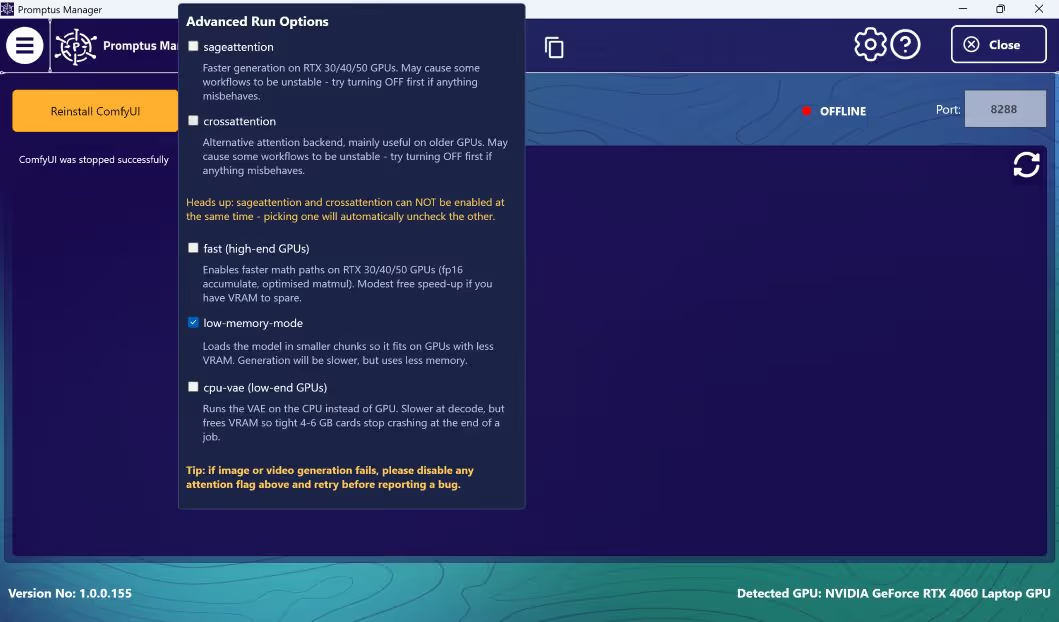
The panel surfaces five key settings that directly affect how ComfyUI interacts with your GPU:
If image or video generation fails, disable any attention flag (sageattention or crossattention) and retry before reporting a bug. This resolves the majority of workflow instability issues without requiring any configuration file edits.
How to Increase Available VRAM for Local AI
If your GPU has limited VRAM, there are several things you can do to make more room for model loading and generation.
-
Close other GPU applications before generating Browsers, games, and video players all consume VRAM. Check GPU memory usage in Task Manager (Performance tab) before starting a run.
-
Use FP8 or FP16 quantised model variants FLUX.1 Dev FP8 runs on 10–12 GB VRAM versus 16 GB or more for full precision, at comparable output quality.
-
Reduce generation resolution Generating at 768×768 instead of 1024×1024 reduces peak VRAM usage by approximately 30–40%.
-
Enable low-memory-mode in Promptus As shown in the Advanced Run Options panel above, this loads the model in chunks and keeps generation accessible on lower-VRAM cards.
-
Enable cpu-vae for very tight VRAM budgets Offloads the final decode step to the CPU and prevents out-of-memory crashes at the end of a generation on 4–6 GB cards.
-
Set Windows Virtual Memory to system managed System Properties → Advanced → Performance → Virtual Memory. Allows Windows to use fast SSD as overflow memory.
Troubleshooting: Fixing CUDA and ComfyUI Errors
AssertionError: Torch not compiled with CUDA enabled
AssertionError: Torch not compiled with CUDA enabled
This means PyTorch was installed without CUDA support — either the CPU-only version was installed, or PyTorch was set up before the NVIDIA driver was correctly configured.
Fix steps:
- Uninstall the existing PyTorch installation.
- Reinstall the CUDA-enabled version from pytorch.org — use the configuration selector and match your driver's CUDA version.
- Verify by running the command below — it should return
True.
# Verify CUDA is available
python -c "import torch; print(torch.cuda.is_available())"
# Expected output if working:
True
If you are using Promptus, this error is handled automatically — Promptus manages its own Python environment and will prompt you to reinstall the CUDA-compatible runtime if it detects a version mismatch.
Generation crashes mid-run
If generation fails partway through, try the following in order: (1) disable sageattention and crossattention in Promptus Advanced Run Options and retry; (2) enable low-memory-mode if not already active; (3) enable cpu-vae if VRAM is very limited; (4) reduce resolution or switch to an FP8 model variant.
GPU not detected after a driver update
A driver update can break the PyTorch–CUDA version pairing. Run nvidia-smi in Command Prompt to check which CUDA version your current driver supports, then reinstall the matching PyTorch version from pytorch.org. If you are using Promptus, updating the app will detect the driver change and update its environment automatically.
The Bottom Line
If you have any RTX GPU with 8 GB or more of VRAM, you have everything you need for local AI image generation. The technology stack — Python, CUDA, PyTorch — is real, but you do not need to manage any of it manually.
Promptus installs and manages the full environment automatically. It detects your GPU on first launch, configures the appropriate settings, and surfaces run options like the Advanced Run Options panel shown in this article — so you can tune performance for your specific hardware without editing a single configuration file.
Ready to run local AI on your RTX GPU?
Promptus handles the entire Python, CUDA, and PyTorch stack automatically. Download it, install it, and your RTX GPU will be generating images in under 10 minutes — no command line required.
Download Promptus