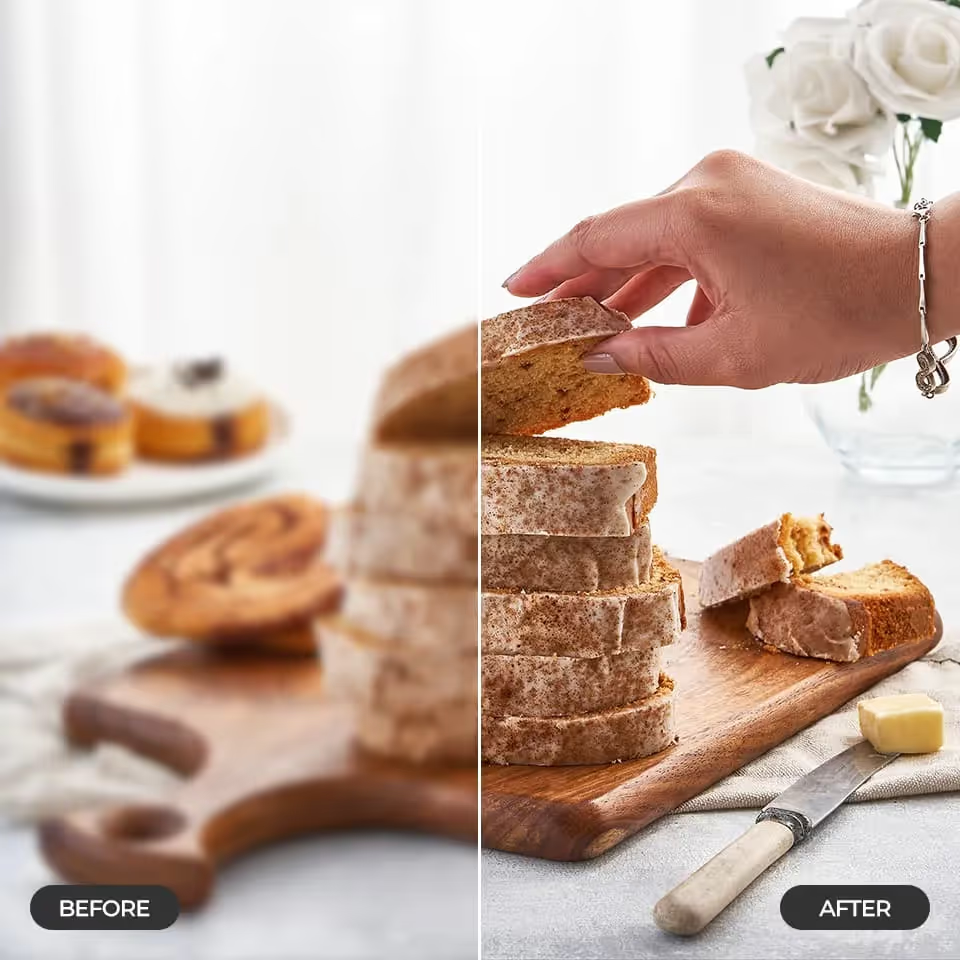
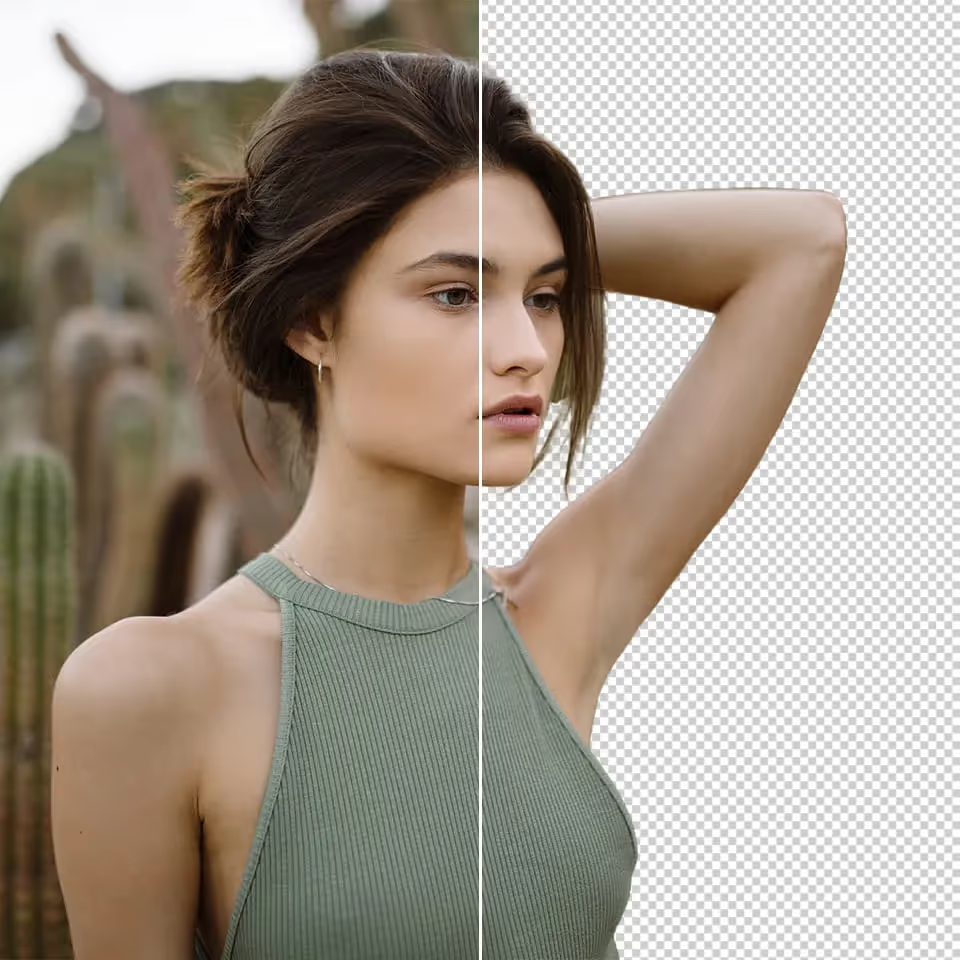
AI photo editing lets you easily remove unwanted elements or seamlessly blend in new details. Ideal for photo retouching, creative edits, and professional presentations.
One-Click Results
AI Inpainting Techniques delivers instant results so you can focus on creativity, not tools. Automatically adjust sharpness, lighting, and color levels to enhance any image.
AI photo inpainting lets you remove, replace, or reconstruct parts of an image automatically. Instead of manually cloning pixels or patching areas in traditional editors, AI analyzes the surrounding context and generates realistic replacements that match lighting, texture, and perspective.
AI Inpainting Settings: FAQs
A strong starting point is denoise 0.45–0.75, 20–35 steps, CFG 5–8, and a sampler like DPM++ 2M Karras. For most edits, a mask blur of 4–8 gives smoother blending. Lower denoise preserves more of the original image, while higher denoise allows more aggressive changes inside the masked area.
Use 0.35–0.5 for small corrections like blemishes or cleanup, 0.5–0.7 for replacing objects, and 0.7–0.9 for major changes or generating new content. If the result looks too different from the original photo, your denoise value is probably too high.
This usually happens because the masked region is too small, the resolution is too low, or the workflow uses too few steps. Increase sampling steps to around 30–40, work at a higher resolution when possible, and use a more specific prompt for the masked area. If needed, combine inpainting with latent upscale or a high-resolution pass.
For most edits, mask blur 4–8 is the sweet spot. Use 0–2 when you need sharper edges, such as product shots or graphic elements. Use 8–10+ for softer transitions in portraits or background cleanup. Too much blur can cause the change to spread outside the intended masked area.
The most common causes are high denoise, too much mask blur, or an inpainting workflow that is acting more like full img2img. Lower the denoise to around 0.45–0.6, reduce blur, and use a dedicated inpaint workflow or inpaint model if available. This helps keep the unmasked parts of the image stable.
Try AI Photo Editing in Promptus
Enhance the visual quality and clarity of your images instantly. Improve engagement and impressions with pristine visuals.